
Built on Experience
A Familiar Foundation. A Fresh Approach to Updates.
Modern WordPress update management, redesigned for the way you work, and supported by an experienced WordPress developer.

Ronald Huereca – Creator and Developer of UpdateBee
Proven Experience
From an original developer of Easy Updates Manager.
WordPress 7.2 Ready
Built for modern WordPress and workflows.
Open Source
GPL-licensed software, with code and software you can try before you buy.
Features
Schedule updates, manage notifications, monitor results, and get alerted when things go wrong, all from one automatic updates solution.
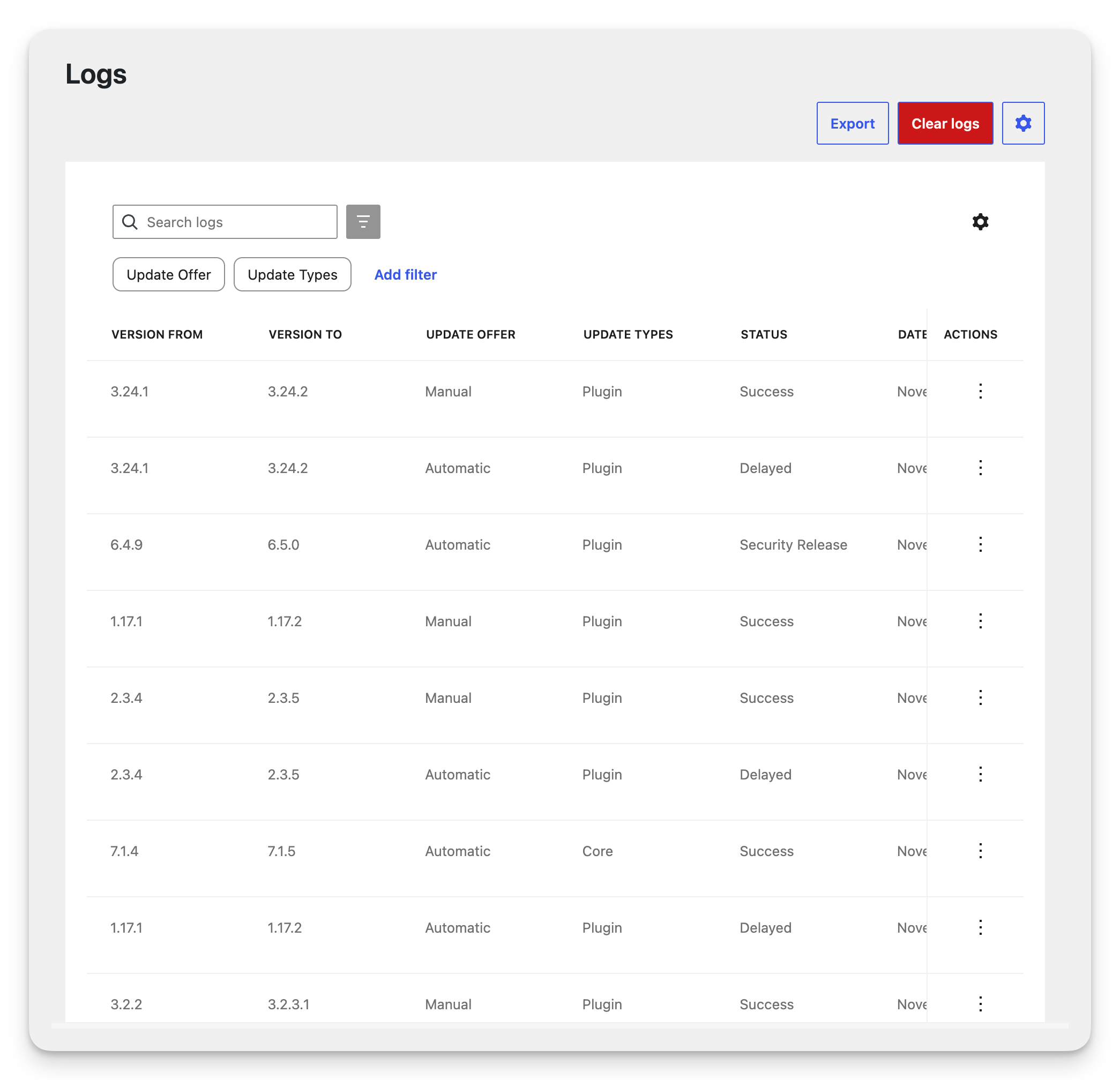
Log Entry Items for Automatic Update Notifications
Enable Automatic Updates
From the main plugin settings, toggle which items you’d like to enable automatic updates for. This includes Core, plugins, themes, and translations.
View Upcoming Updates
View what’s upcoming, what is next to be updated, and what is going to be skipped, all from one screen. Schedule individual updates, block an update, or update the asset without navigating between screens.
Manage Plugin Updates
View comprehensive cards for each plugin. Block an individual plugin, enable patches only, or even roll back WordPress.org assets. Add notes, skip the global delay, view upgrade notices, and sort by activation status.
Manage Theme Updates
View a comprehensive card for each theme, allowing you to add notes, block updates, rollback, and even update, all without having to navigate to the WordPress updates screen.
Manage Translation Updates
View a comprehensive list of translation locales. Skip a problematic translation, or turn off updates completely. This screen is a one-stop-shop for managing all your translation updates.
Detailed Logs Keep You Informed
Use logs to see what was updated and when. See what was skipped, delayed, or what was considered a security release. Enable Slack notifications, and export logs for client reporting.
Disable Core Notification Emails
Core sends out a lot of emails when automatic updates are enabled. With one switch, you can turn these off or choose who receives them.
Get “Success Only” Email Reports
Set up a success email that sends only successful updates. This is extremely useful because it lets you focus on what worked and what didn’t. This email is very useful to send to clients automatically, while keeping failures separate.
Get “Failure Only” Email Reports
Get an email when updates fail so you can act immediately. Failure emails are useful for developers who want to triage unsuccessful updates immediately without alerting the client.
Get Fatal Notification Alerts
Send fatal alerts to a Slack channel, and receive an email alert when something catastrophic happens with an update.
Get “Available Update” Emails
Get a periodic email when updates are available. This report helps you see at a glance what needs updating and what’s scheduled for the next batch of updates.
Adjust the Cron Schedule and Get Help Setting Up Crontabs
Set plugin, theme, and core updates separately. If Cron is disabled, the schedule cards have Crontab shortcuts you can plug into your server or host immediately.
Force and Refresh Updates As Needed
Trigger updates using “Force Updates”, and do a hard refresh using “Refresh Updates.” These are available as options, or you can run them anywhere in the admin using the command palette shortcuts.
Import and Export Settings
Set up UpdateBee how you like, and export the settings so you can use it on another site. This is a very agency-friendly option.
Set up Plugin Branding
Change how the plugin looks in the admin for client presentations. Hide the license screen when you have an active license.
Delay Automatic Updates
Sometimes plugin authors release quick consecutive updates. A delay skips the unstable version and waits a day or so before committing fully to the update.
Trigger Security Updates With Keywords
Security updates skip the queue and are updated immediately. The logs record the incident and save the upgrade notice so you can see what’s changed.
Slack Notifications
Receive Slack notifications for new log entries, successful updates, failures, available updates, and fatal reports.
Block Untested Updates
Skip plugins and themes that haven’t marked themselves as compatible with the latest version of WordPress.
Set a Global Admin Menu
If you find yourself needing to check UpdateBee often, you can enable an admin menu shortcut so that you can reach settings from the admin menu toolbar.
Friendly Reset and Deactivate Options for Cleaning Up
Reset select options, or deactivate the plugin and clear all the created tables and settings.