In wp-admin, open Plugins → Add New Plugin and install UpdateBee, or upload the updatebee folder to wp-content/plugins/.
On a single site, choose Activate. On Multisite, open the network admin Plugins screen and choose Network Activate.
UpdateBee on Multisite Installs
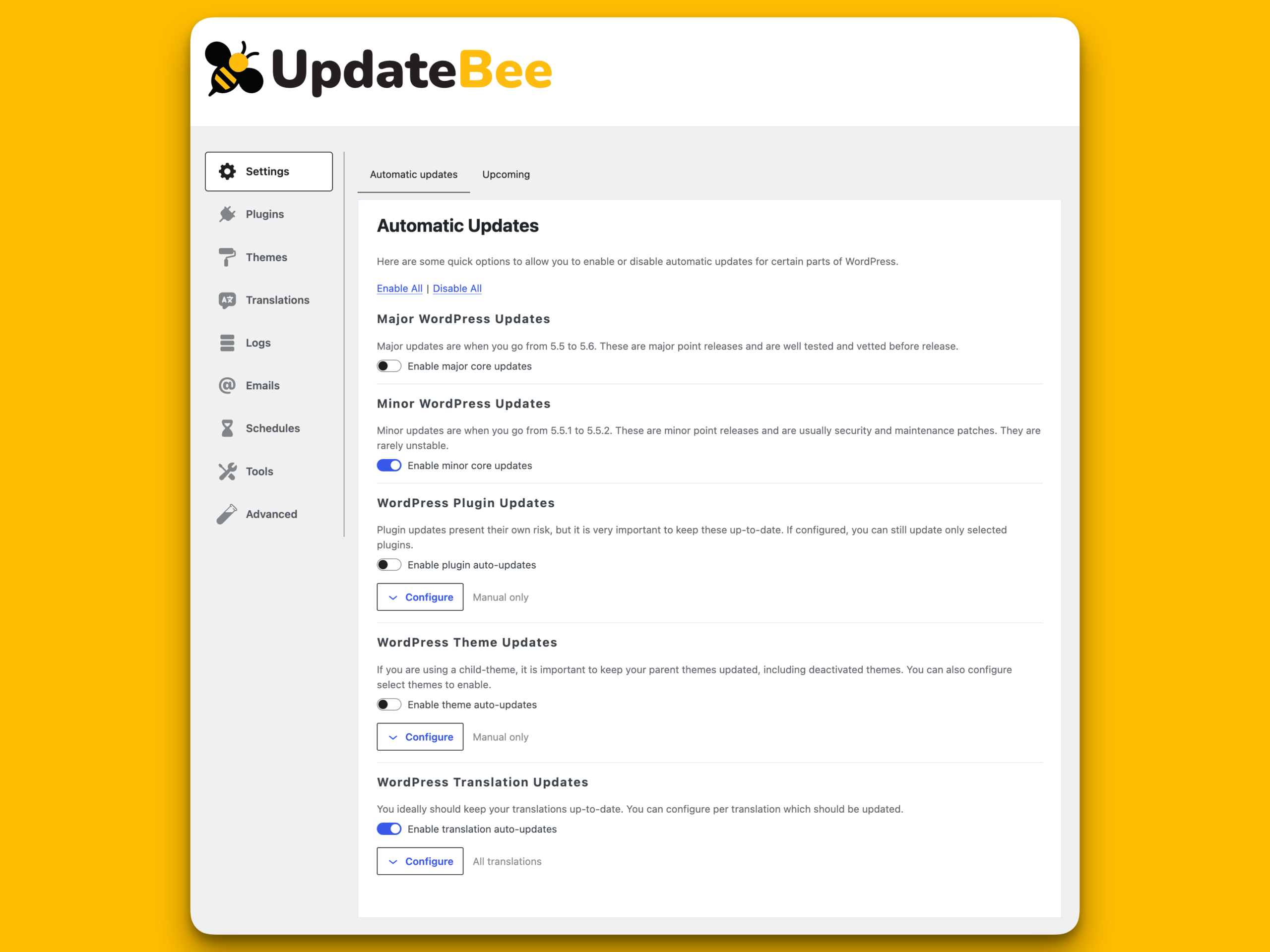
The plugin must be Network Activated on a Multisite install and has its options in the Network Admin under Settings->Automatic Updates.
Find UpdateBee’s Options
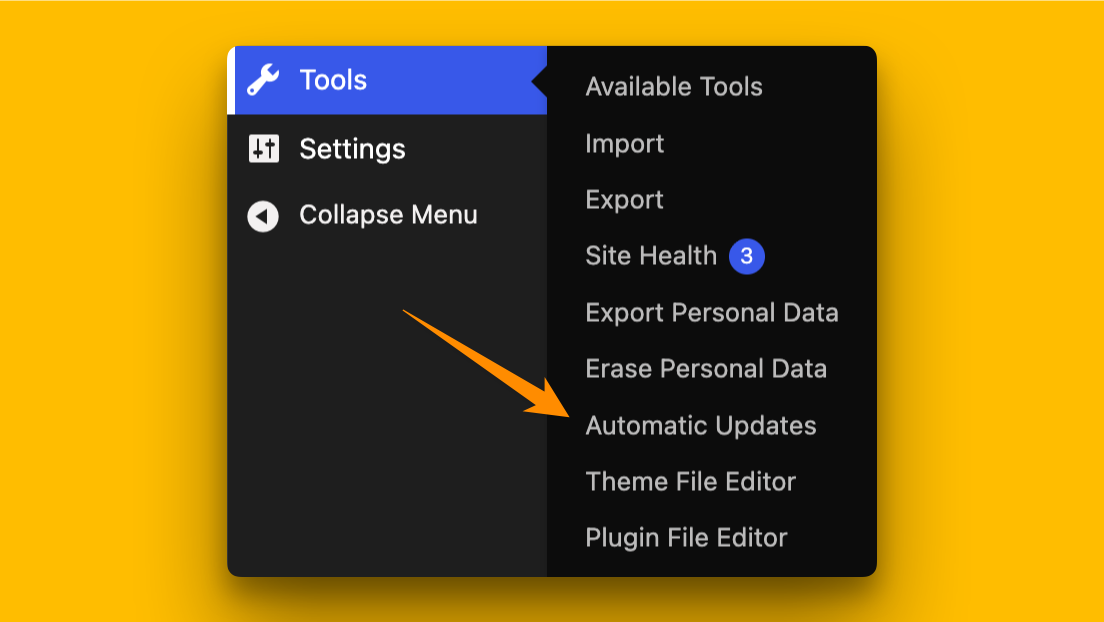
On a single site, open Tools → Automatic Updates. The menu is available for site administrators only.
Single Site Settings Are Under Tools->Automatic Updates.
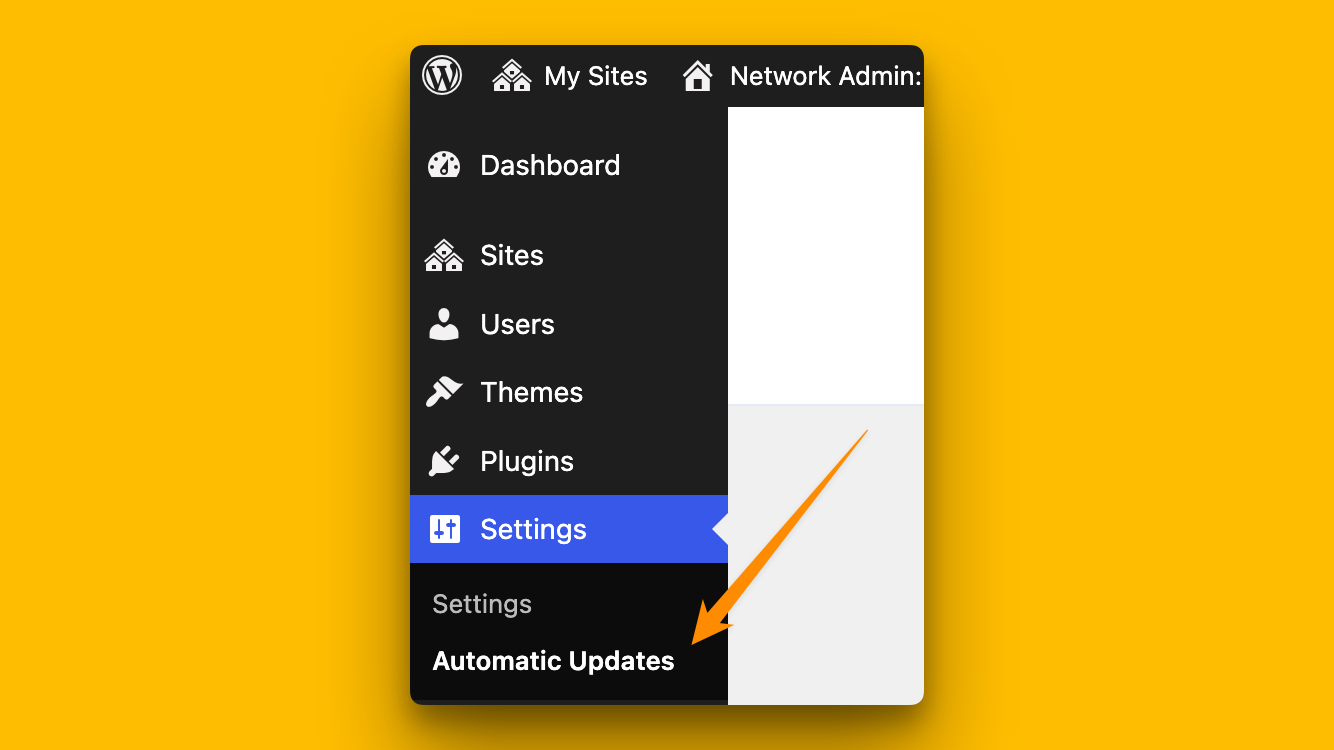
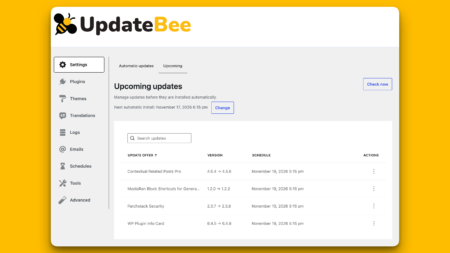
On Multisite, open the network admin and go to Settings → Automatic Updates. The menu is available to users who are Network Administrators (i.e., Super Admins).
Network Admin Settings Screen for UpdateBee
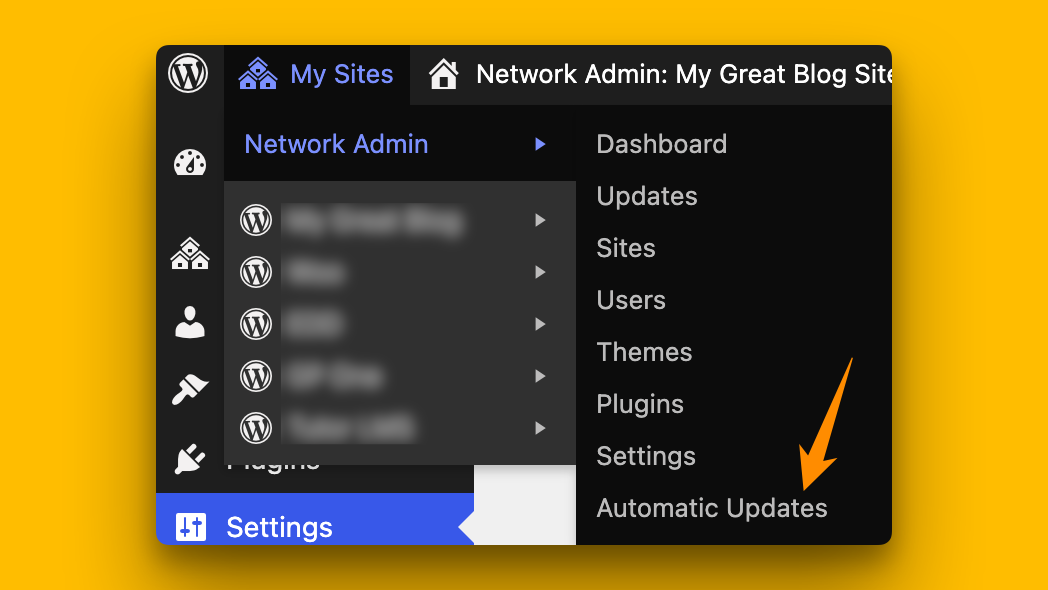
On Multisite, you can also access UpdateBee via the admin menu.
Access Automatic Update Settings Via the Network Admin Menu