UpdateBee can copy settings from Easy Updates Manager or Companion Auto Update when that plugin’s saved data is still on the site. The importers can be found under the Tools tab in UpdateBee’s admin. You can also import/export from UpdateBee’s settings if you’ve used and configured it on another site.
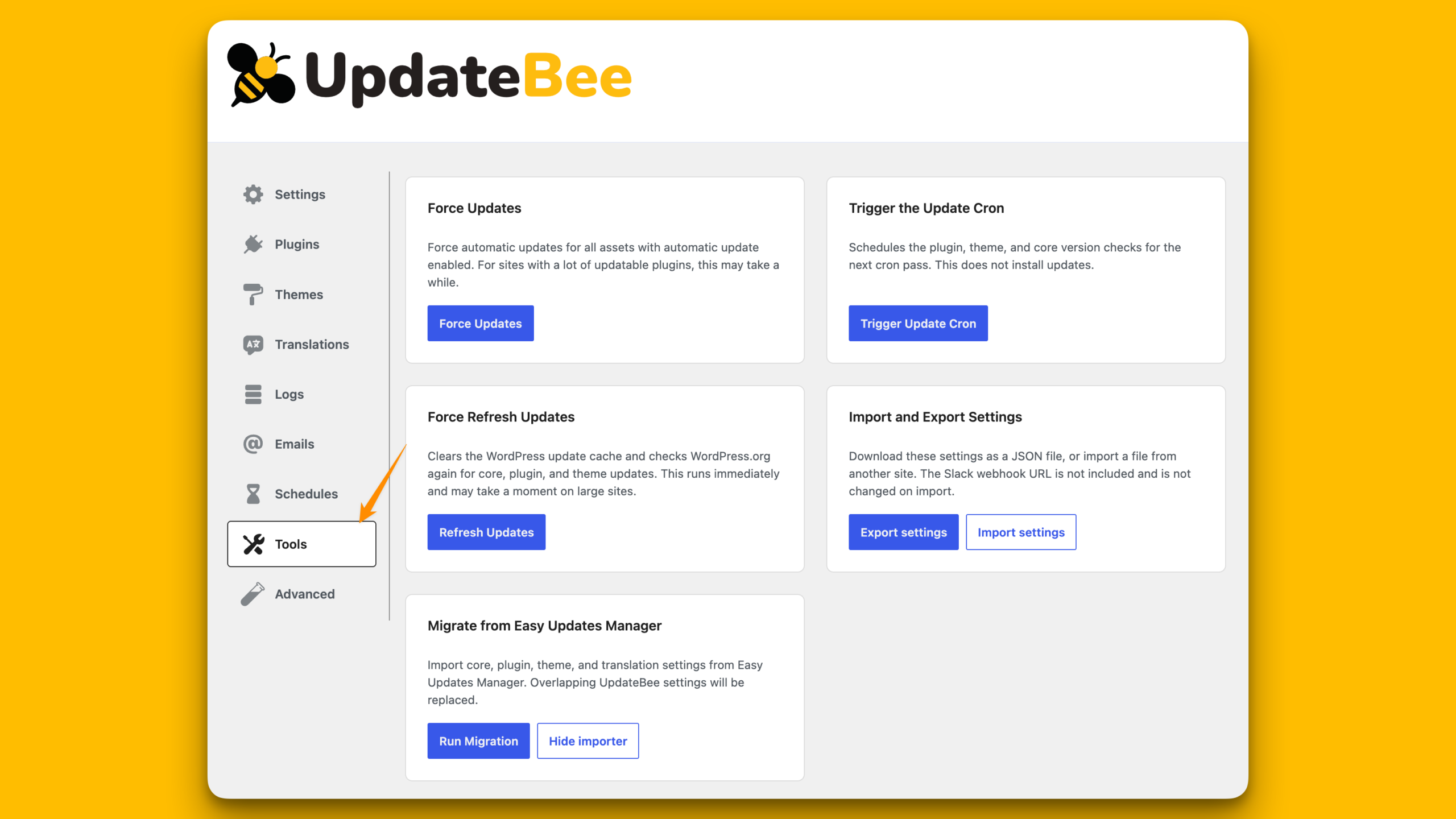
Open UpdateBee→Tools tab in your settings. On single-site, you can find UpdateBee’s settings under Tools →Automatic Updates. On Multisite, it’ll be in the Network Admin under Settings →Automatic Updates.
Tools Tab in UpdateBee’s Settings
When Importer Cards are Shown
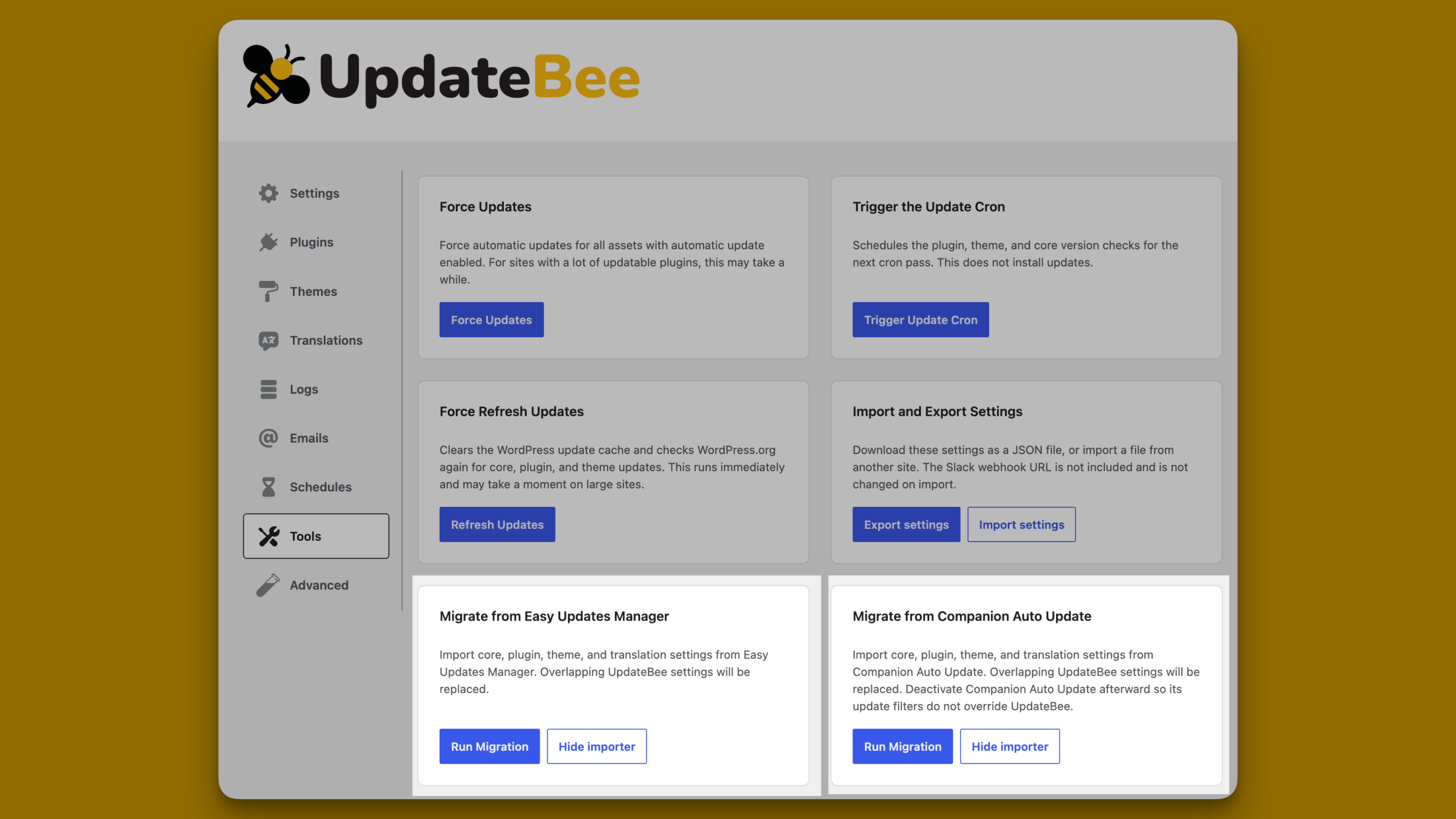
UpdateBee’s Tools Setting Showing Easy Updates Manager and Companion Auto Update’s Migration Tools
A migration card appears when UpdateBee finds that plugin’s settings and the card has not been hidden. Easy Updates Manager is read from its saved options. Companion Auto Update is read from its settings table. After you hide a card, it stays off in the Tools tab until you restore it by partially resetting UpdateBee’s settings.
Migrate from Easy Updates Manager
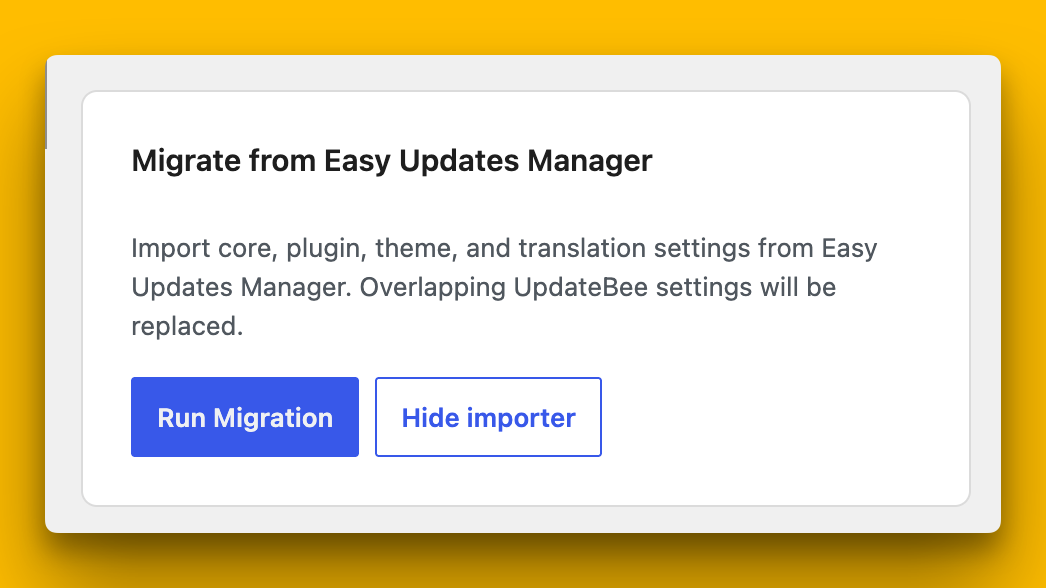
If Easy Updates Manager settings are found, an importer will display under the Tools tab in UpdateBee’s settings. The card is titled Migrate from Easy Updates Manager.
Migrate from Easy Updates Manager Card in UpdateBee’s Tools Tab
Select Run Migration.
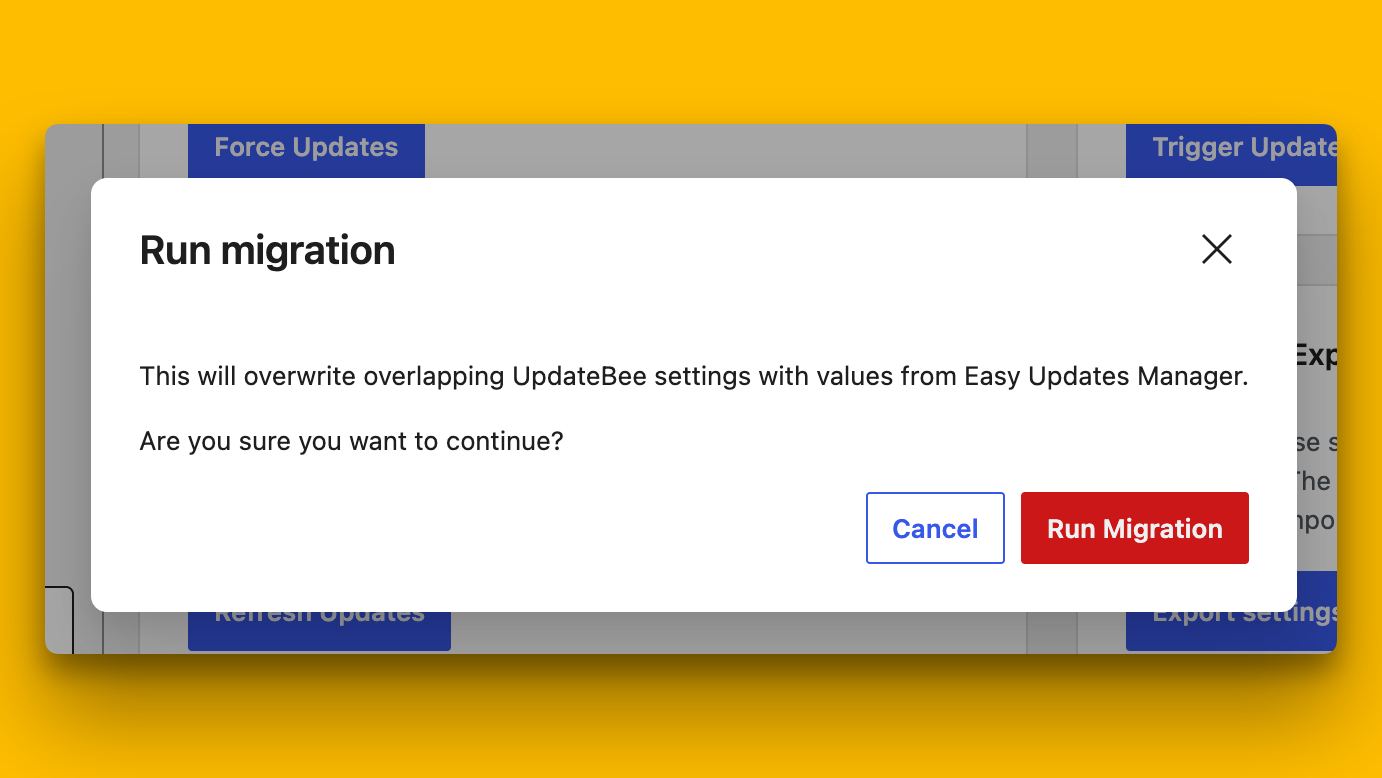
Confirm Run migration. The confirmation says this will overwrite overlapping UpdateBee settings with values from Easy Updates Manager.
EUM Migration Modal Confirmation
Once the importer has been run, you can deactivate Easy Updates Manager and hide the importer so you don’t accidentally run it again.
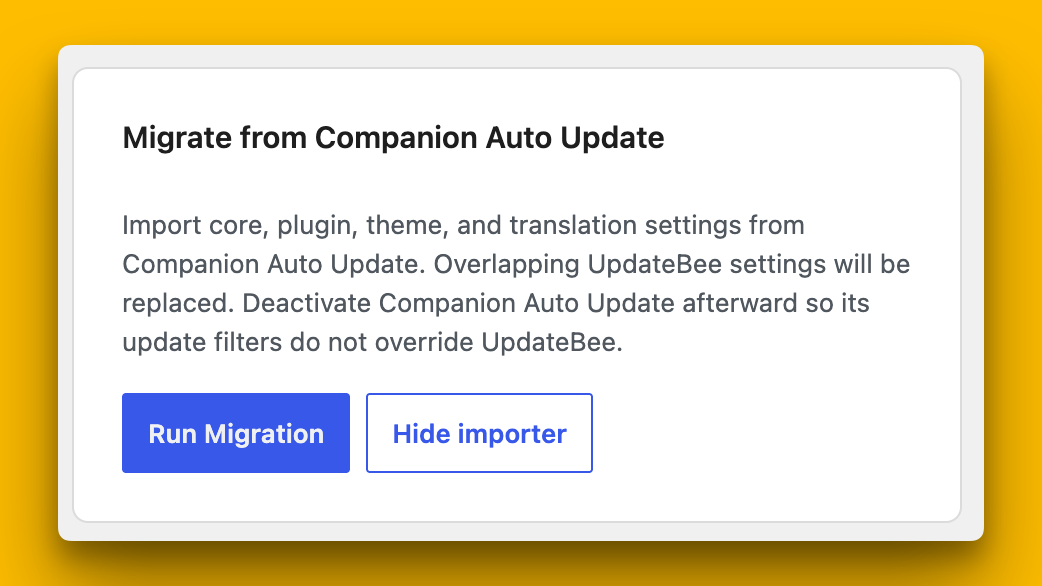
Migrate from Companion Auto Update
If Companion Auto Update is found, you’ll see an importer for the plugin under the Tools tab in UpdateBee’s settings.
The card is titled Migrate from Companion Auto Update.
Companion Auto Update’s Migration Card
Once run, please deactivate Companion Auto Update afterward so its update filters do not override UpdateBee.
Select Run Migration.
Confirm Run migration. The confirmation says this will overwrite overlapping UpdateBee settings with values from Companion Auto Update.
Deactivate Companion Auto Update after the migration.
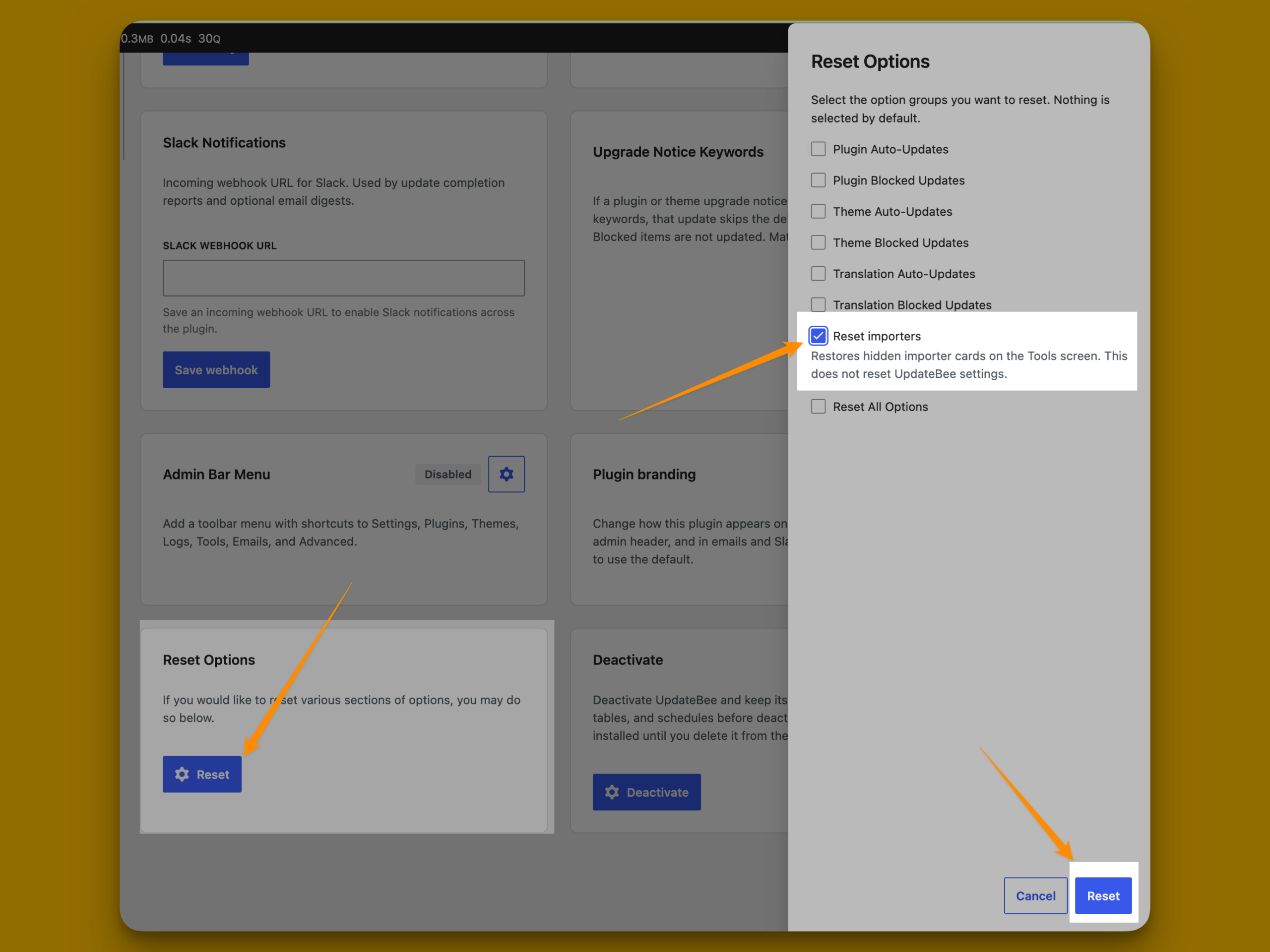
Show a hidden Importer again by Resetting Options in the Advanced Tab
Reset the Importer Options to Show Any Import Options That May Have Been Hidden
On the Advanced tab, open the Reset Options drawer and check Reset importers. With that being the only item checked, click the Reset button. Any available importers will be shown again.
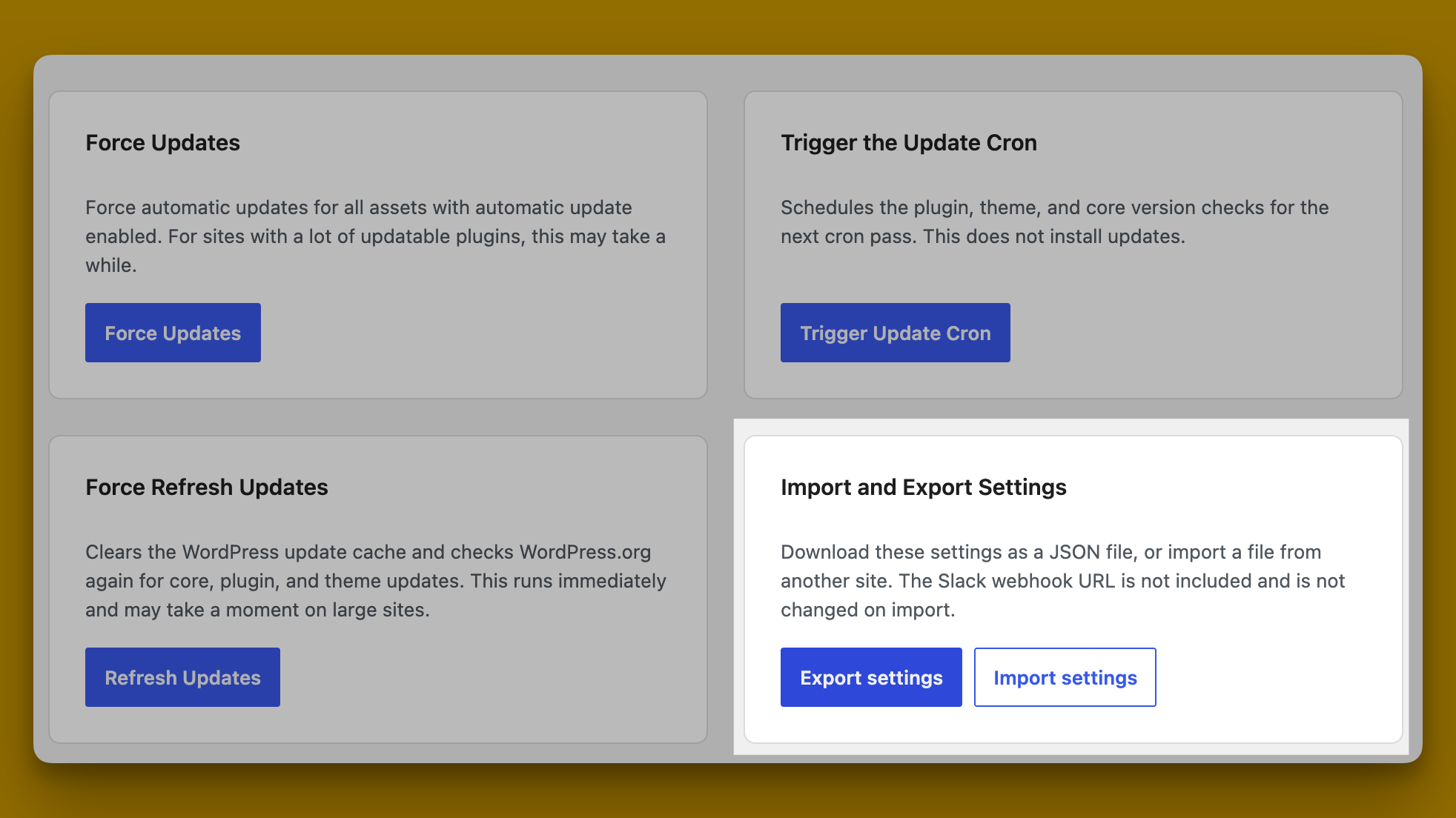
Import/Export between UpdateBee sites Under the Tools Tab
Import and Export UpdateBee Settings From Site to Site
Import and Export Settings on the Tools tab downloads the site’s settings as JSON or replaces them from an uploaded file.
Slack Webhook URLs Are Never Copied
Because of the sensitive nature of Slack Webhooks, these are never copied from site-to-site and are left out of any imports or exports UpdateBee Generates.
Related Posts:
Translation Updates November 14, 2026 You can control how translations are updated in Settings, or…