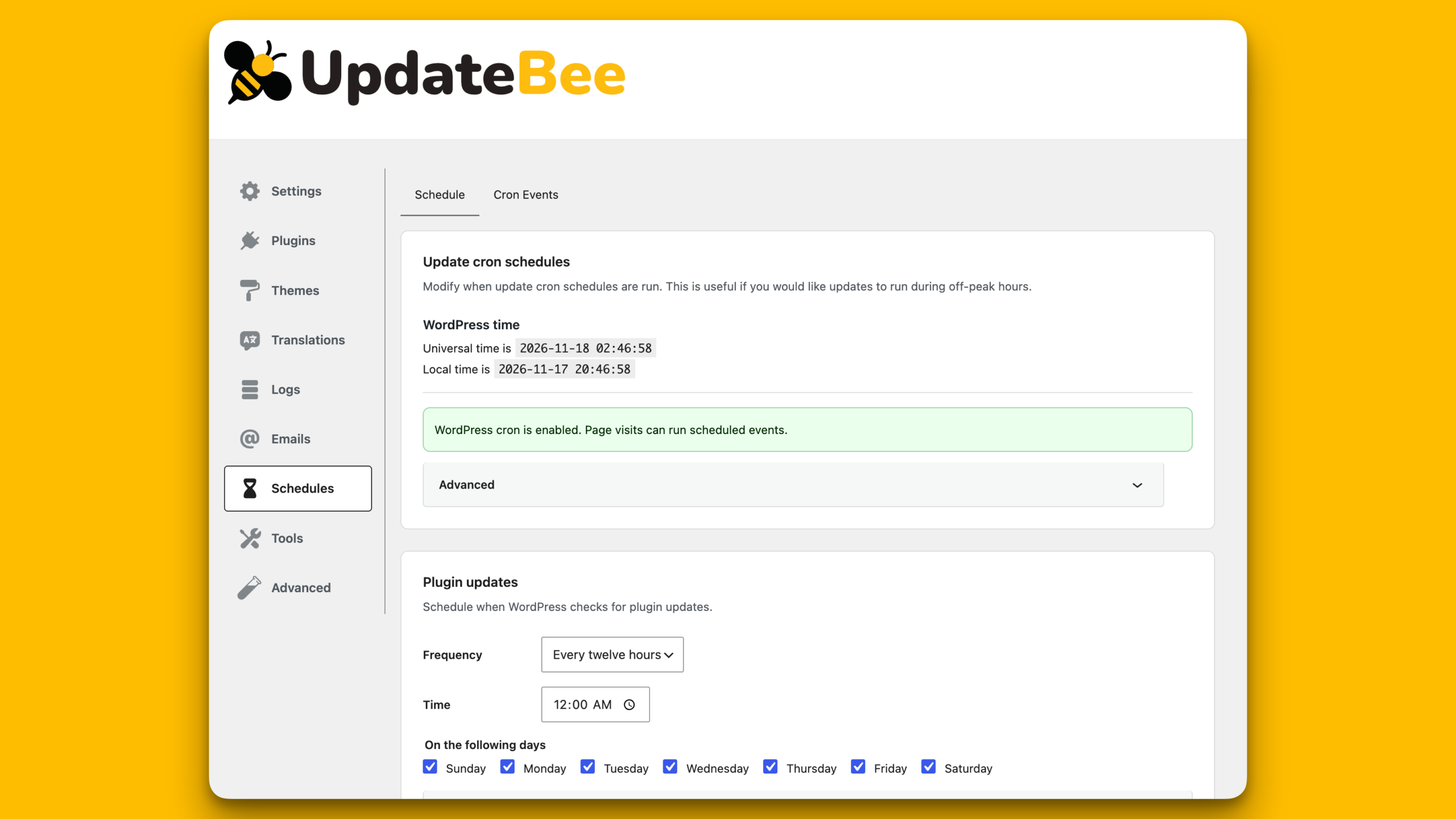
The Schedules tab sets when WordPress checks for plugin, theme, and core updates. The checks use the WordPress site timezone. Changing a schedule changes when the check runs. Installing an update still depends on the policy on Settings and on the item screens.
The tab has two subtabs: Schedule and Cron Events.
Schedules Tab in UpdateBee Showing Schedule and Cron Events Subtabs
Schedule cards
Schedule opens with Update cron schedules and the current WordPress time. Under that are three cards:
Plugin updates — schedule when WordPress checks for plugin updates.
Theme updates — schedule when WordPress checks for theme updates.
Core updates — schedule when WordPress checks for core updates.
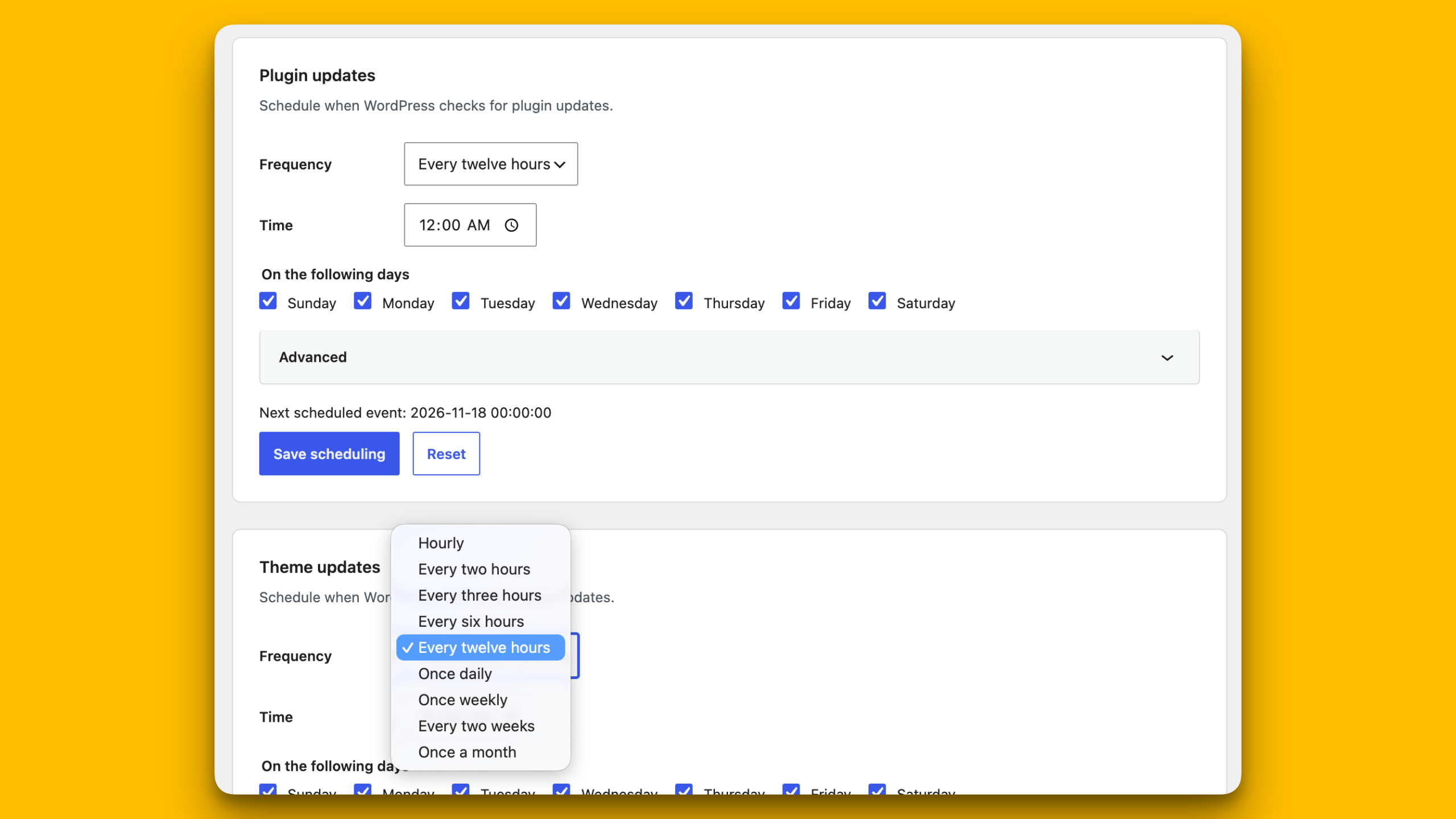
Plugins Schedule Card With Scheduling Options Shown
Each card has Frequency. The choices are Hourly, Every two hours, Every three hours, Every six hours, Every twelve hours, Once daily, Once weekly, Every two weeks, and Once a month. The form starts on Every twelve hours.
Time sets the clock time for that schedule.
Extra fields appear for some frequencies:
Hourly, Every two hours, Every three hours, Every six hours, and Every twelve hours show On the following days. All seven days start selected.
Once daily shows Except on these days. No days start excluded.
Once weekly and Every two weeks show Day of week, from Sunday through Saturday.
Every two weeks also shows Week, with Week one and Week two.
Once a month shows Day of month, from 1 through 28.
Save scheduling stores the card. Reset returns that card to its saved default schedule. After a save, the card shows Next scheduled event: and the next run.
WordPress cron status
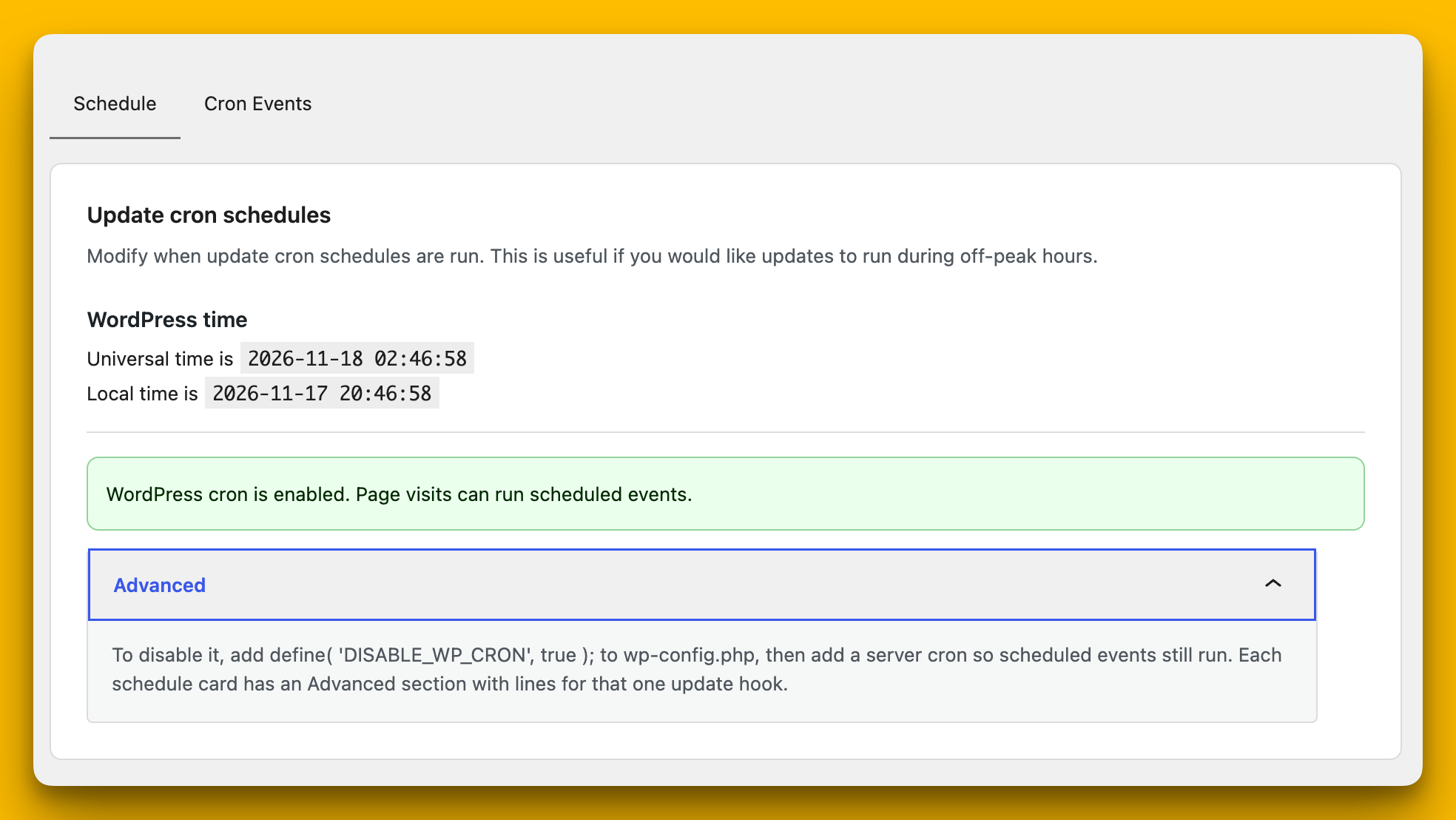
The status notice reads DISABLE_WP_CRON from the site configuration.
Cron Run Detection Detects Current Cron Status for the Site
When WordPress cron is enabled, page visits can run scheduled events. The Advanced panel on that notice explains how to turn WordPress cron off in wp-config.php and then add a server cron so events still run.
When DISABLE_WP_CRON is true, page visits will not run scheduled events, and automatic updates may not run until a server crontab is in place. The Advanced panel asks for a server crontab about every five minutes and shows three lines:
WP-CLI (preferred)
PHP (wp-cron.php)
curl
When DISABLE_WP_CRON is false, WordPress cron is on and the notice says there is no need to change anything unless you want cron to run from the server.
Crontab lines on each card
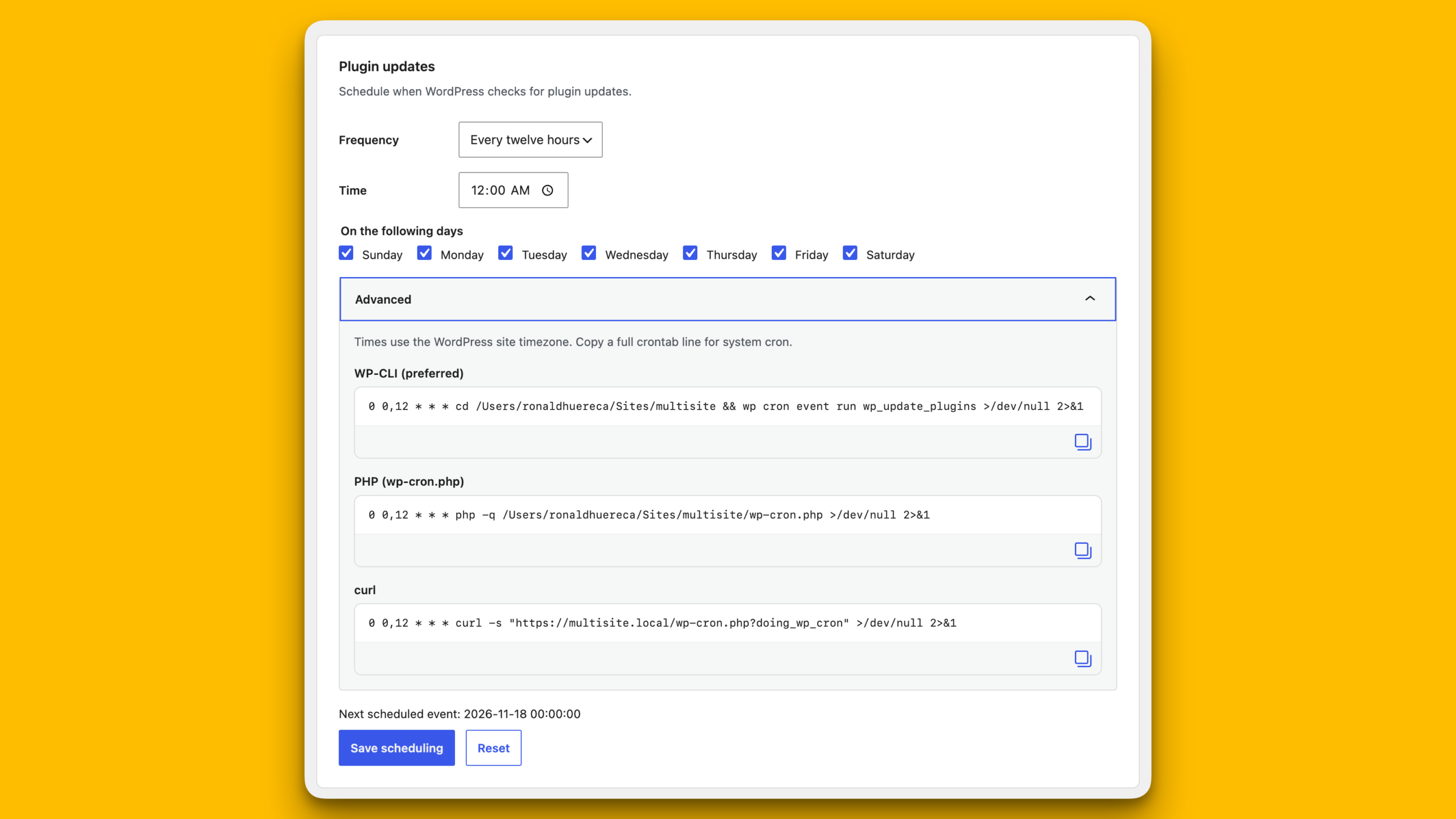
Each schedule card has its own Advanced section. The note says times use the WordPress site timezone, and that you can copy a full crontab line for system cron. The lines are for that card’s update hook:
WP-CLI (preferred) runs that hook with WP-CLI.
PHP (wp-cron.php) calls wp-cron.php.
curl requests wp-cron.php.
For Every two weeks, each label includes (weekly approximation), because a two-week cadence is shown as a weekly crontab line.
Plugin Cron Shown With Advanced Crontab Events Schedule
Cron Events Tab
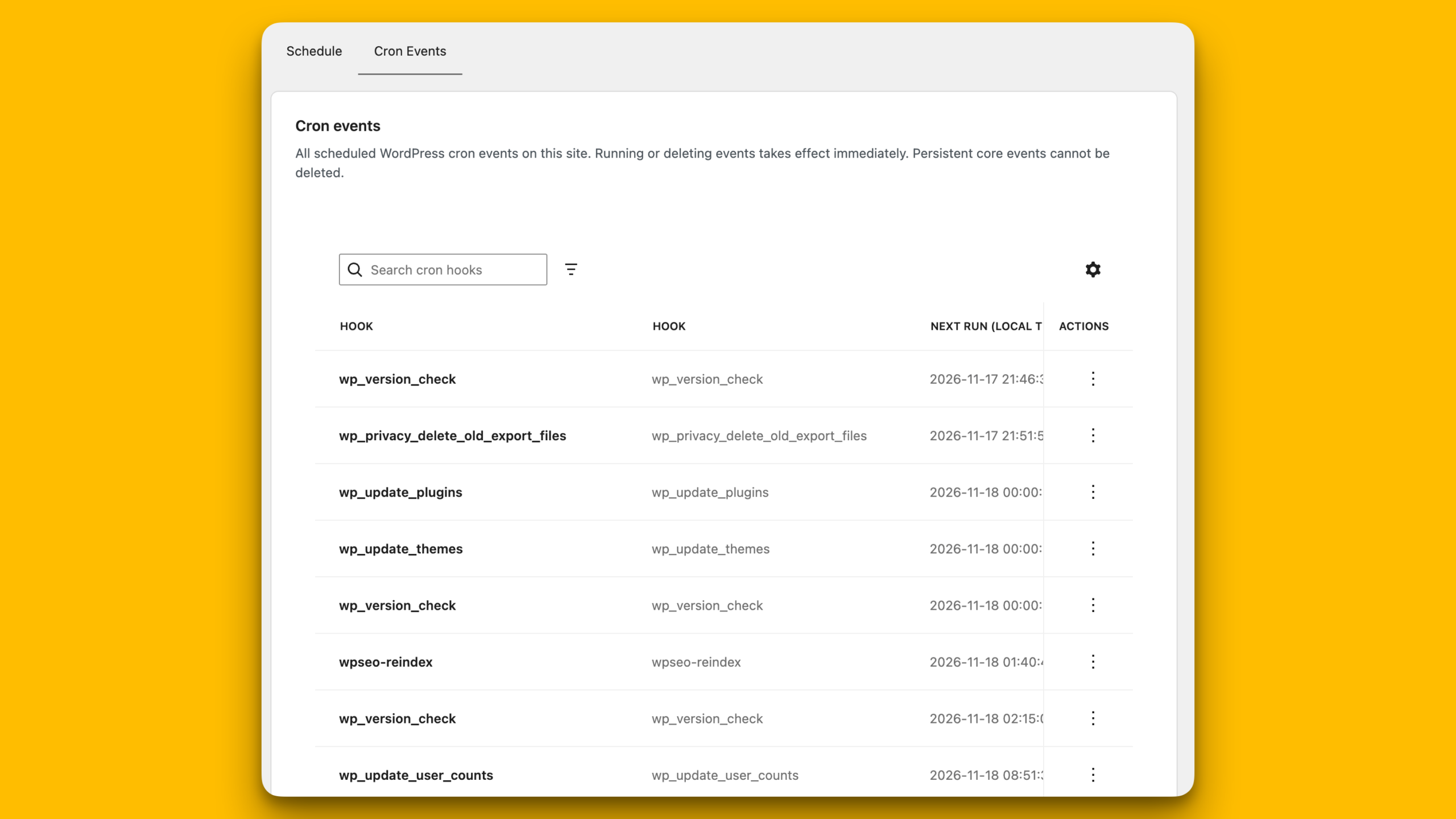
Cron Events lists scheduled WordPress events. The columns are Hook, Next run (local time), Recurrence, and Arguments.
Cron Events Tab Under Scheduling
Run now starts an event that can be run. Delete removes an event that can be deleted (please note, not all events can be deleted).
Running an event from this list starts that hook. It is separate from Trigger the Update Cron on Tools, which is covered in the article Force Updates, Refresh, and Cron.
Related Posts:
Common Use Cases November 14, 2026 UpdateBee is a versatile upgrade management plugin and features several…
UpdateBee on Multisite November 14, 2026 UpdateBee is a Multisite-first plugin, but can work well under…
Upcoming Updates November 14, 2026 This article details what's available under Upcoming Updates, which you…
Translation Updates November 14, 2026 You can control how translations are updated in Settings, or…