UpdateBee is a versatile automatic upgrade manager for WordPress. Here are some common use cases UpdateBee is capable of.
Hold new releases and let a security fix through
UpdateBee features delayed updates and keyword-matching security updates.
Delay Quick Successive Updates
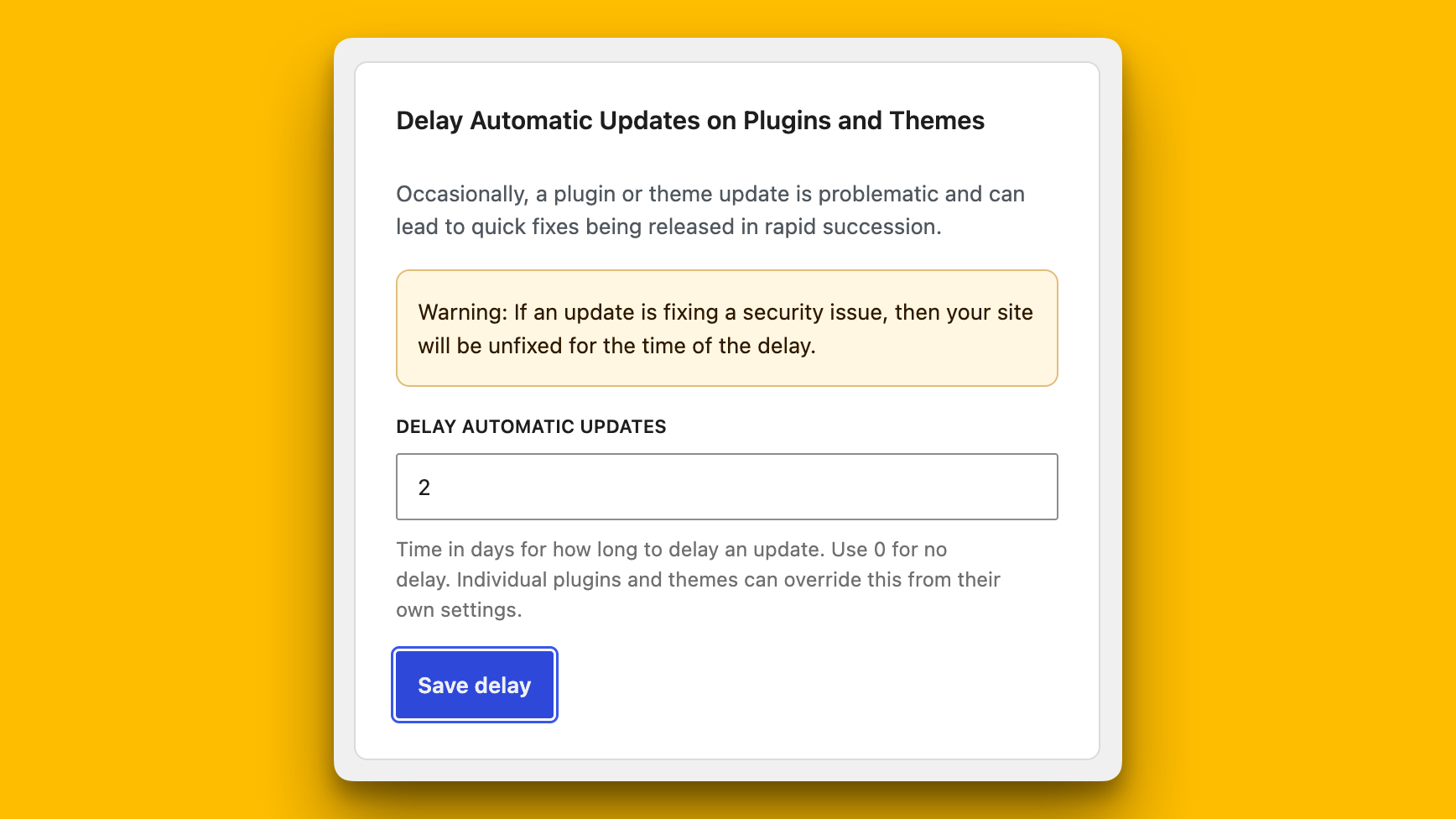
Found in the Advanced tab in UpdateBee’s settings, you can easily set a delay for newer updates.
Delay Automatic Updates Options to Minimize Constant Updates
For example, an author might release version 2.4.1 and quickly follow up with 2.4.2. A delay helps minimize rapid, iterative updates until the plugin author settles on a stable version. On Advanced, set Delay Automatic Updates to the number of days to wait. Use 0 when you want no delay between updates.
Delayed Updates and Security Releases
While a release is delayed, the site keeps the older version, including when that older version has a security issue.
Update Security Releases Immediately With Keyword Matching
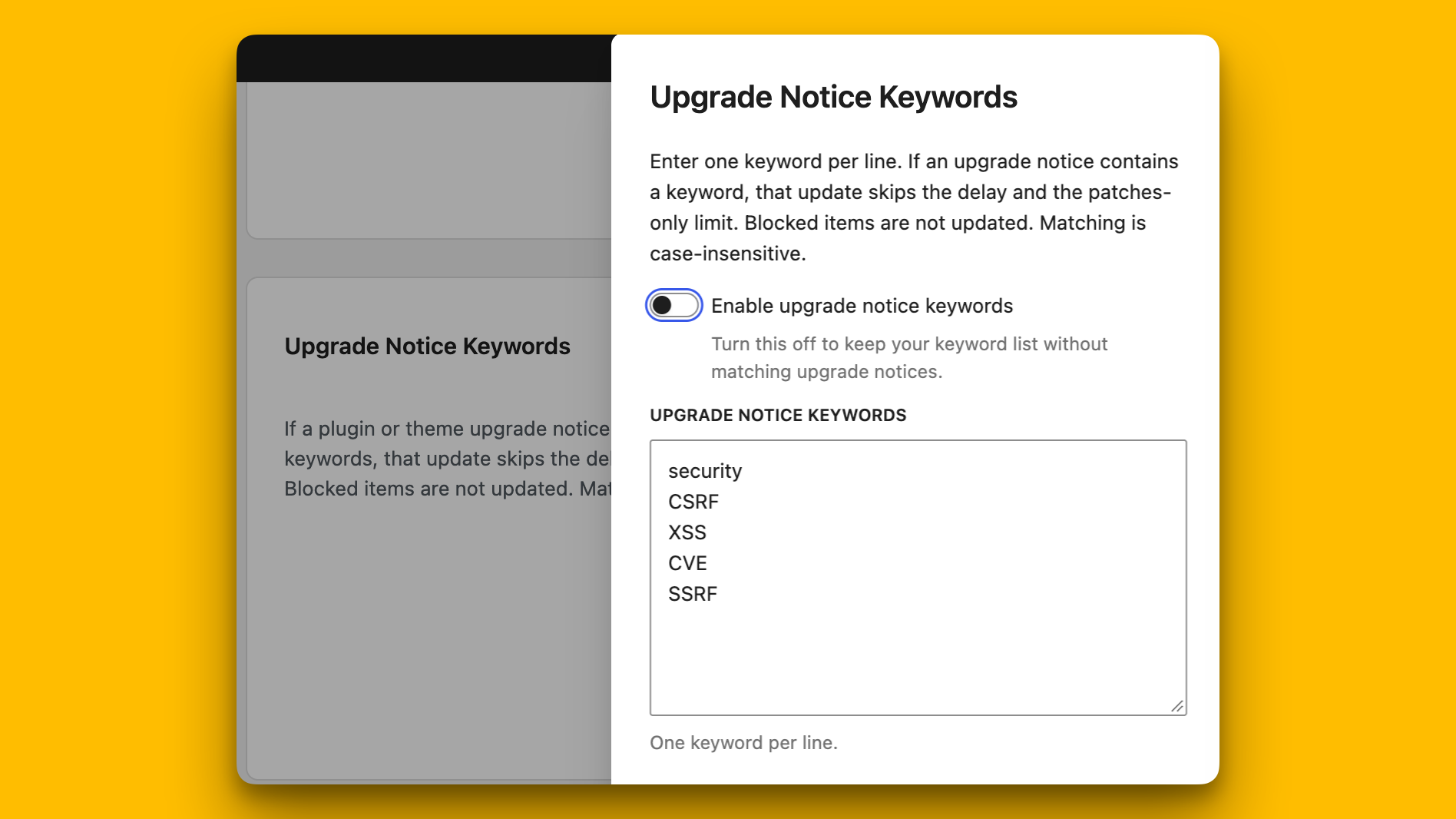
If an upgrade notice contains a keyword you choose, that release can skip the delay. Open Upgrade Notice Keywords on the same tab, turn the list on, and keep one keyword per line. The default list includes security, CSRF, XSS, CVE, and SSRFand the keyword check stays off until you enable it.
Security Keyword Updates Make Security Updates a Priority
Not All Plugins Use an Upgrade Notice
While keywords are useful, not all plugins utilize upgrade notices, so some security releases may not always be caught.
Upgrade Plugin Patches Only Items
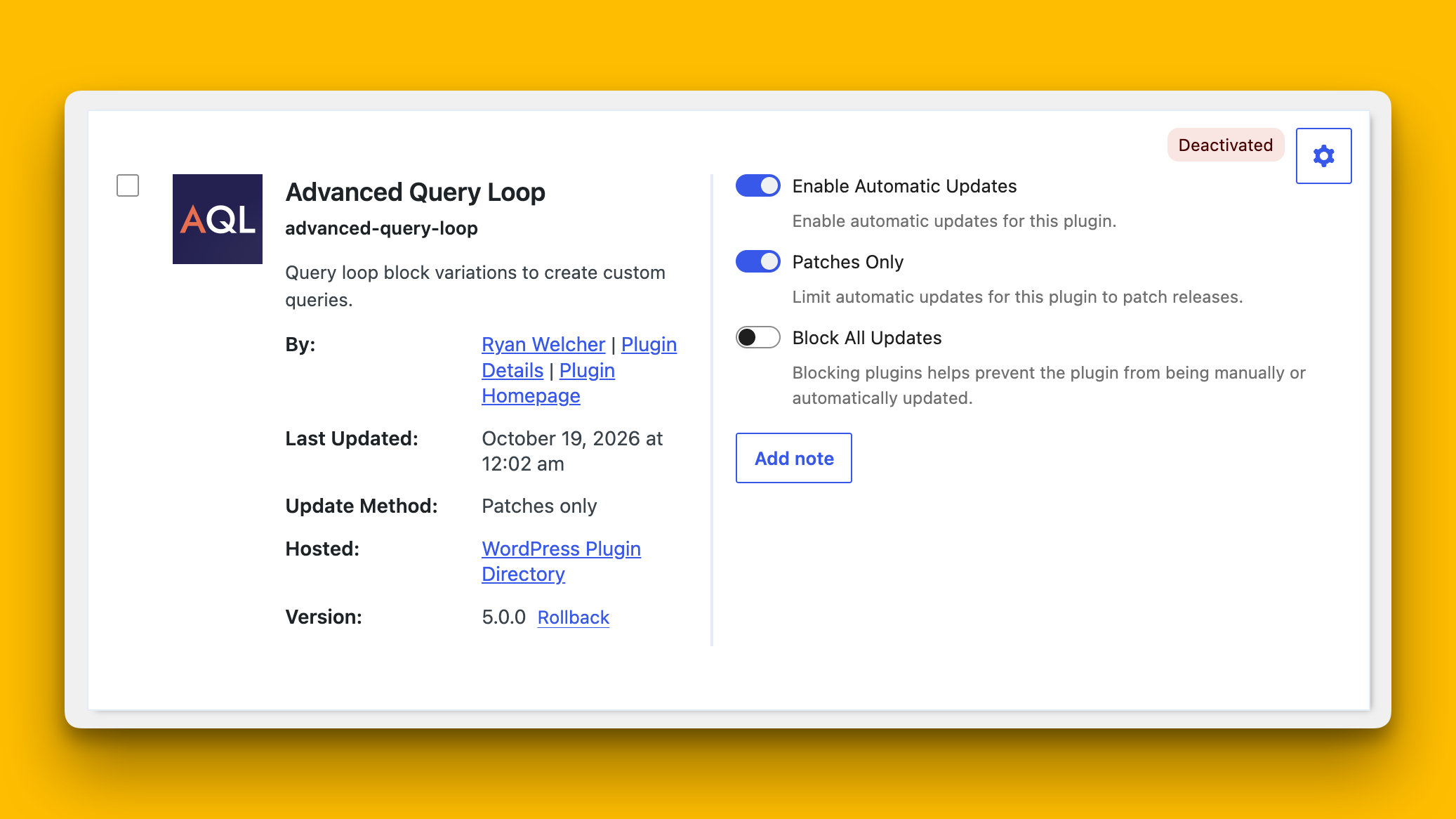
A patch release is a minor version update and usually includes security updates and fixes. Turn on Patches only for an item whose minor fixes you want and whose larger releases you want to install yourself.
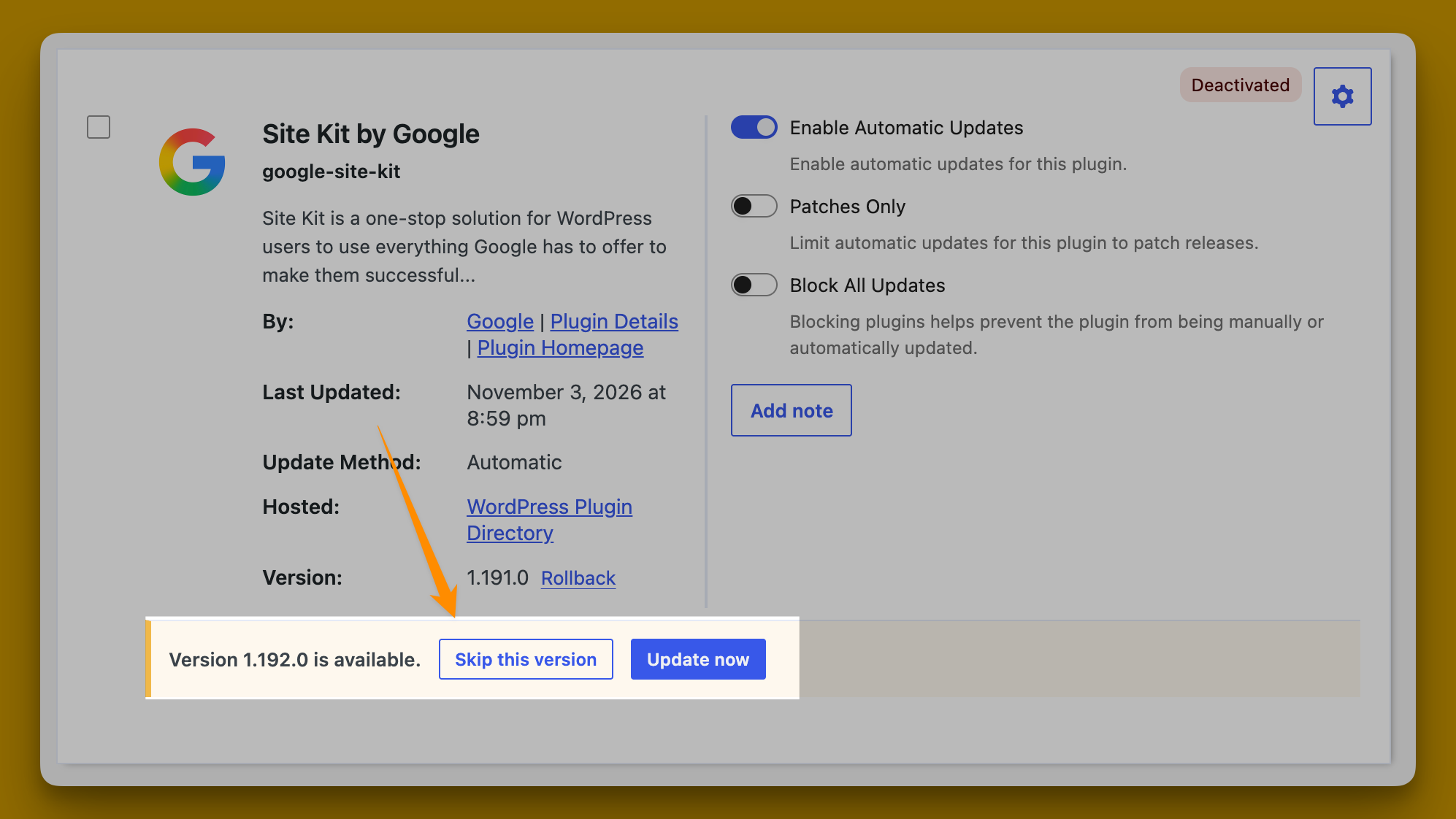
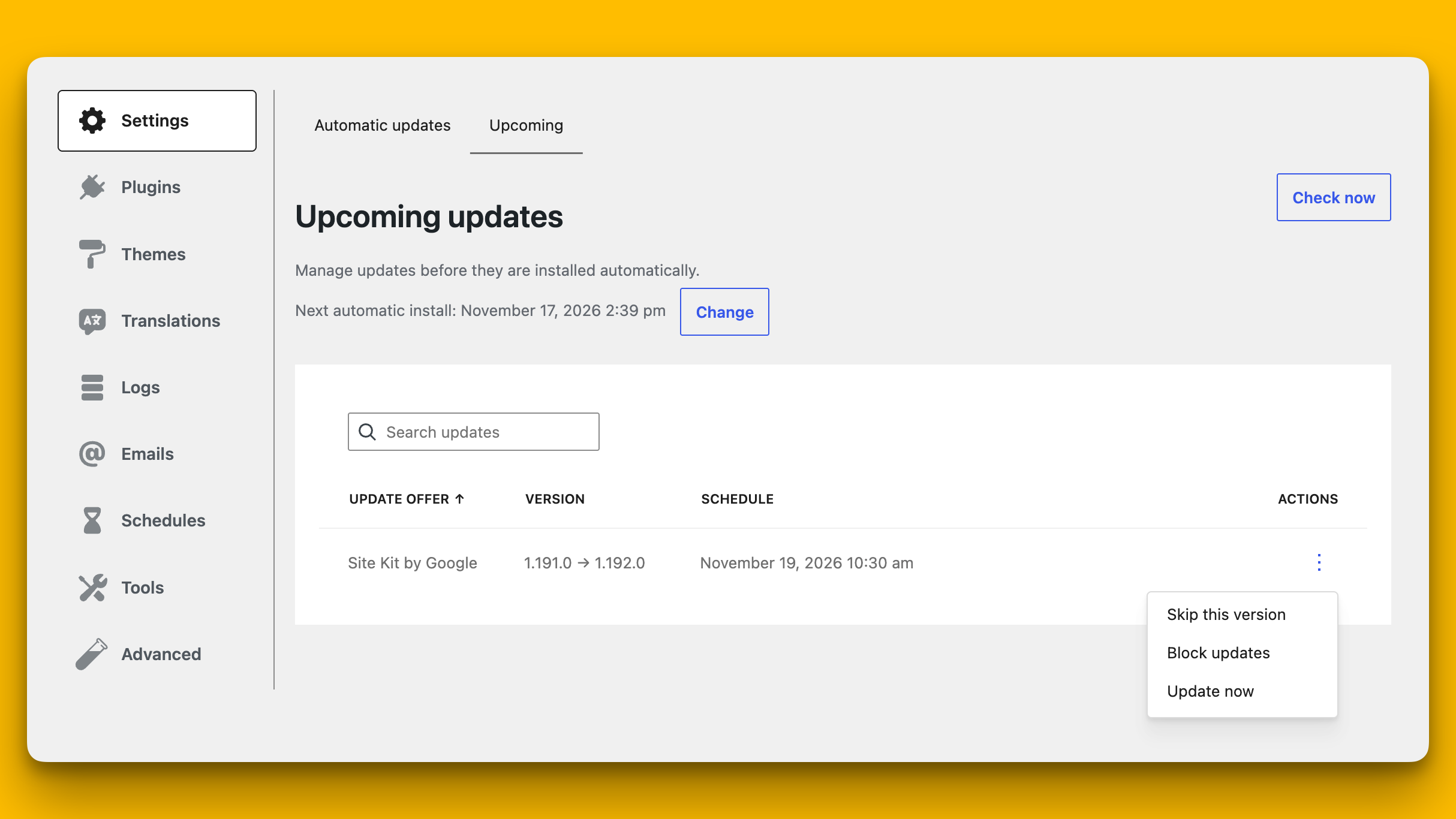
When one release breaks a checkout or another screen, skip that version and leave automatic updates on for the next one. On Plugins or Themes, or on Settings → Upcoming, choose Skip this version. Schedule update puts that version back on the schedule.
Skip a Problematic Version if You Know an Upgrade is an Issue
Block updates on a plugin, theme, or translation hides the upgrade and keeps it from installing. The item disappears from Upcoming and the WordPress upgrade screen.
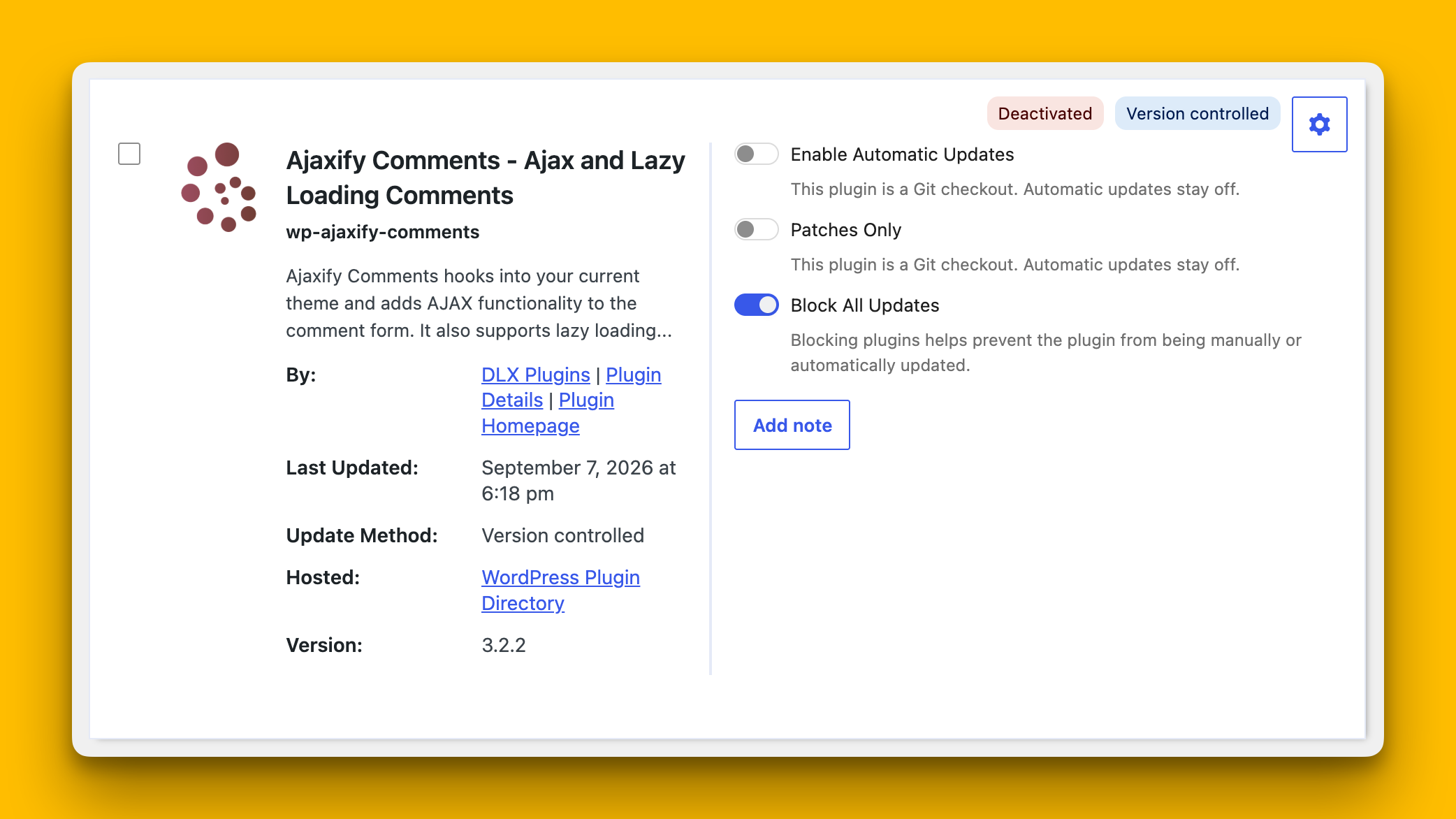
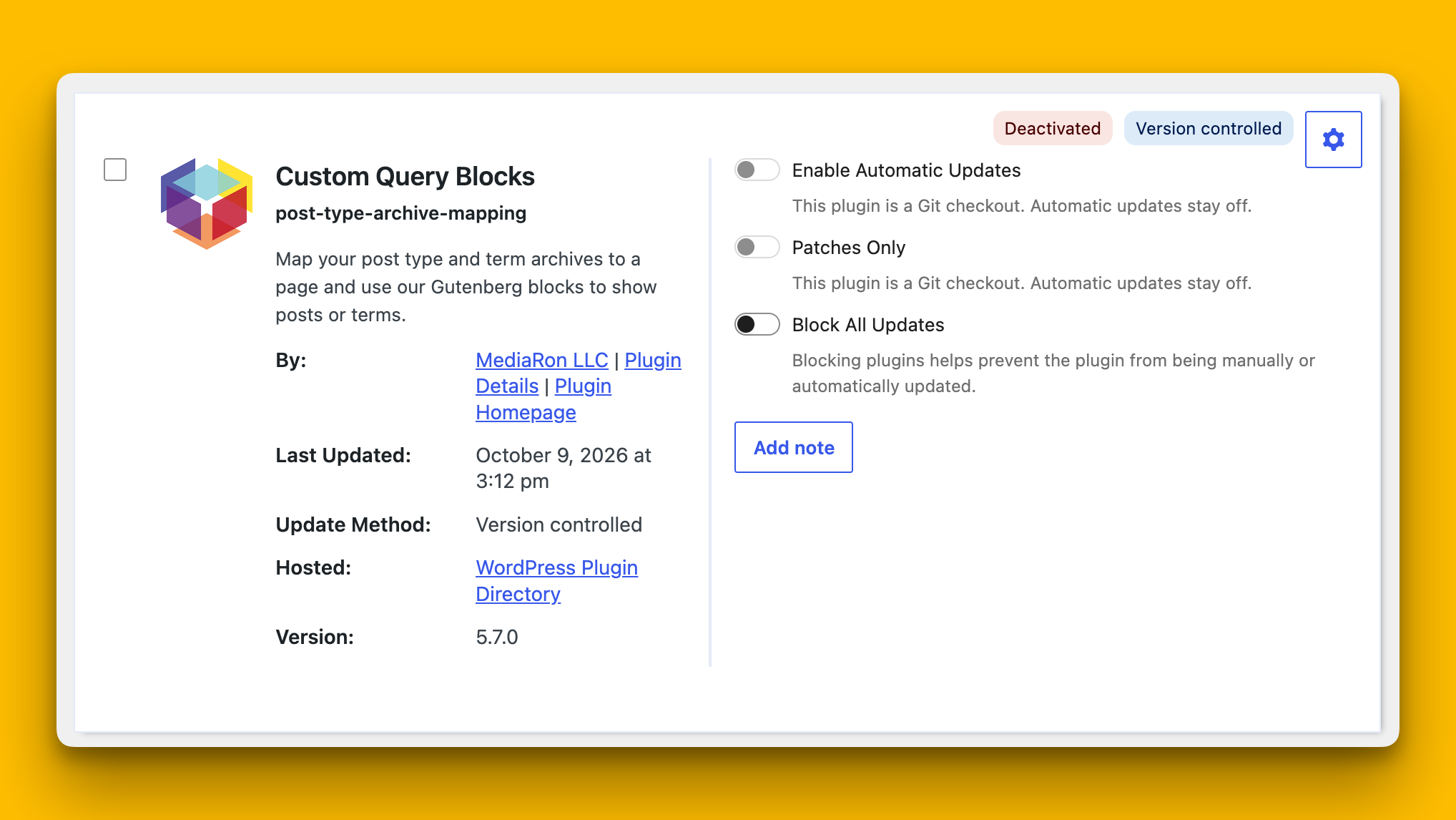
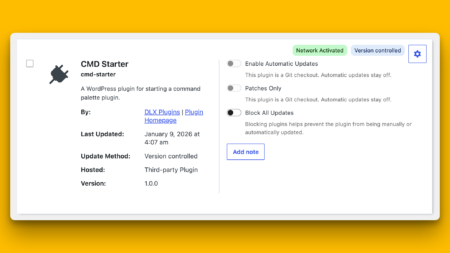
A plugin or theme installed with Composer, Git, Subversion, or Mercurial is labeled Version controlled on Plugins and Themes. UpdateBee leaves automatic updates off for this item.
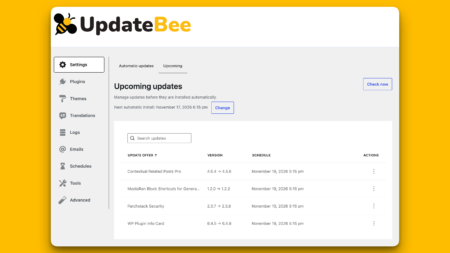
Open Settings and choose the Upcoming subtab. The table lists pending plugin and theme releases, the version you have, the version on offer, and the next automatic install time. From a row you can skip that version, block the item, or choose Update now when the package can be installed.
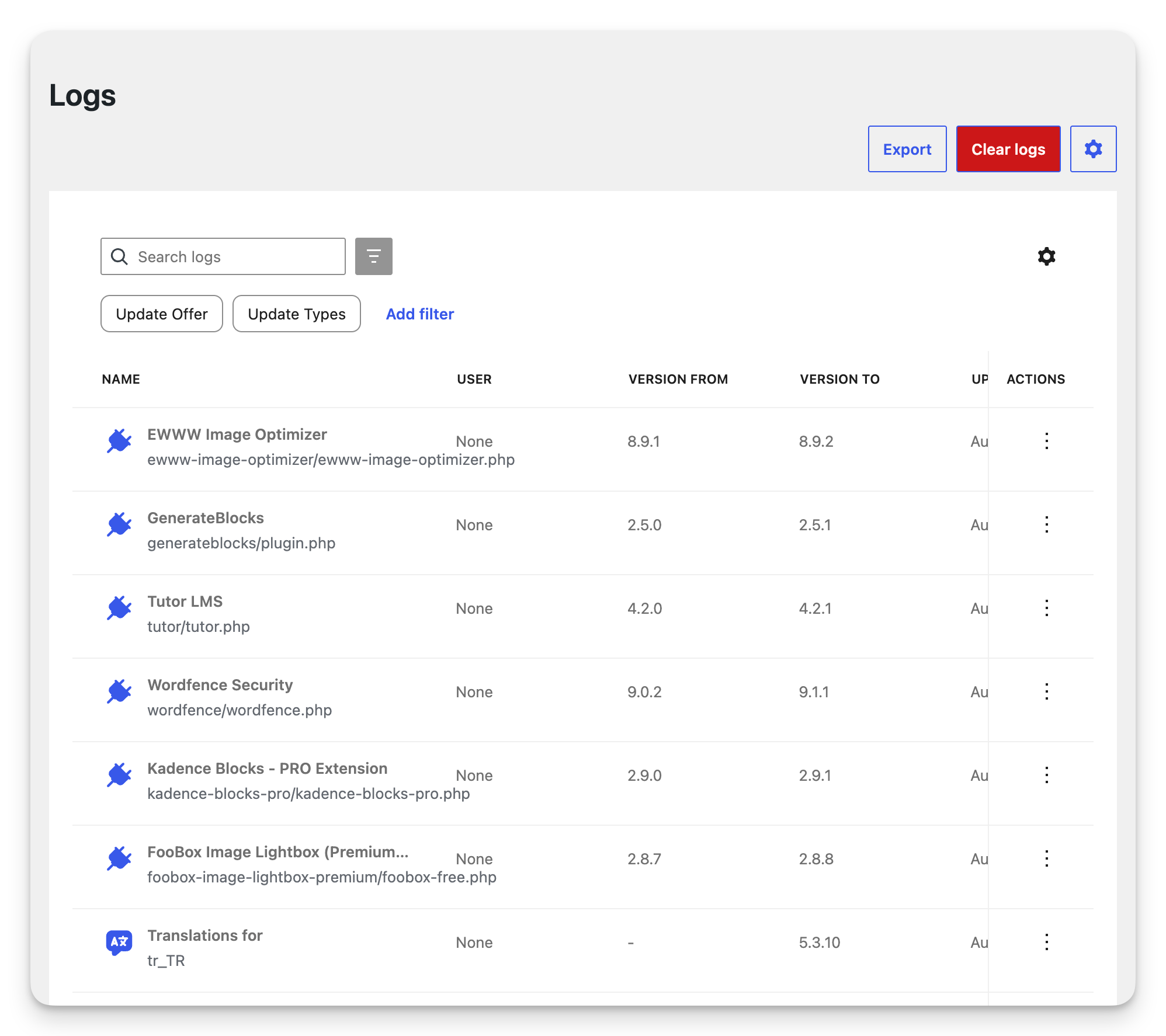
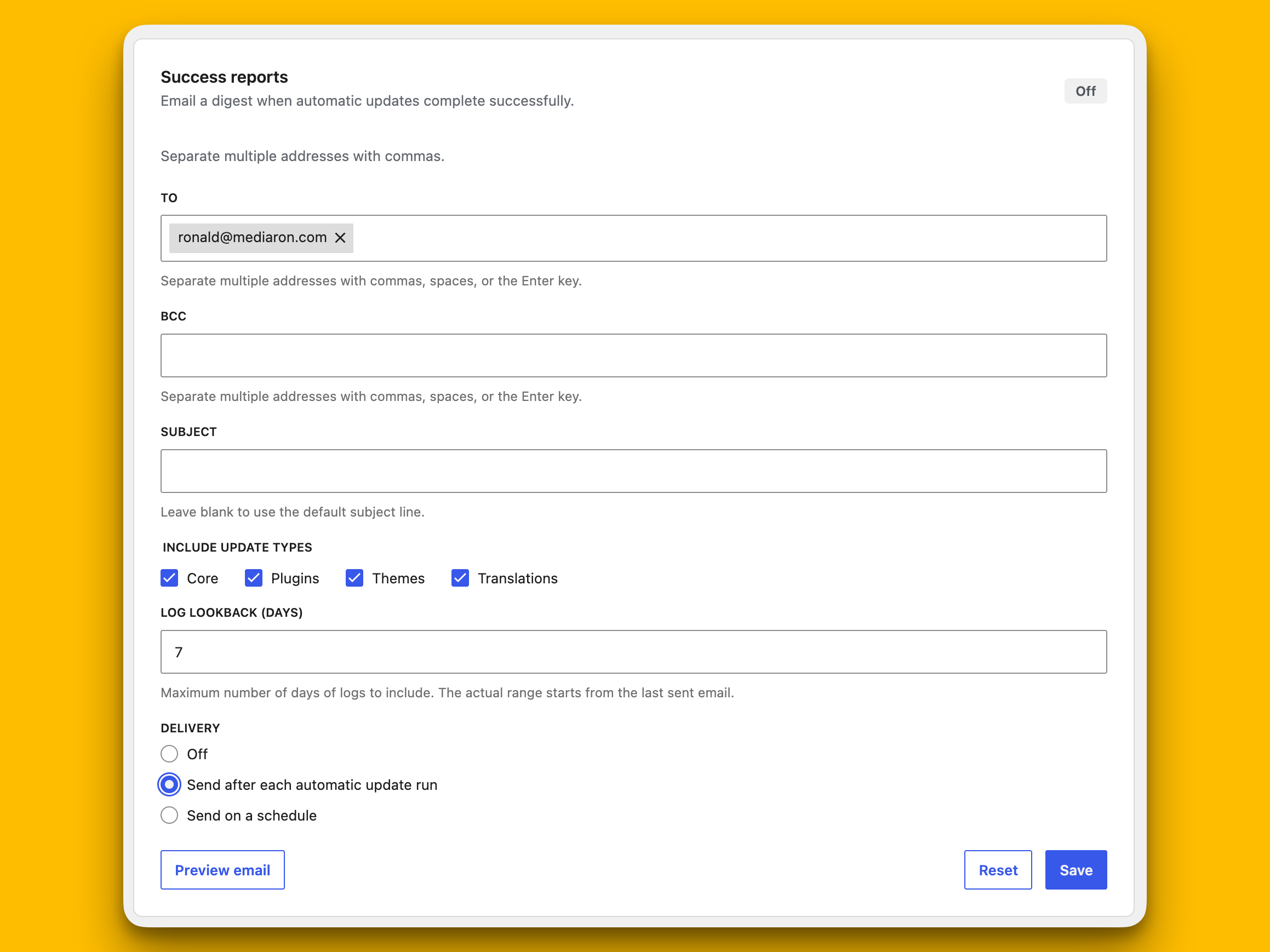
Open Logs. Filter by Success, Failure, Fatal, Blocked, Skipped, or Delayed, then open a row for the versions and notes. Export or clear the table from the same screen. Email and Slack reports read this history, so clearing it removes the source of those reports.
Run updates now, queue a check, or refresh the list
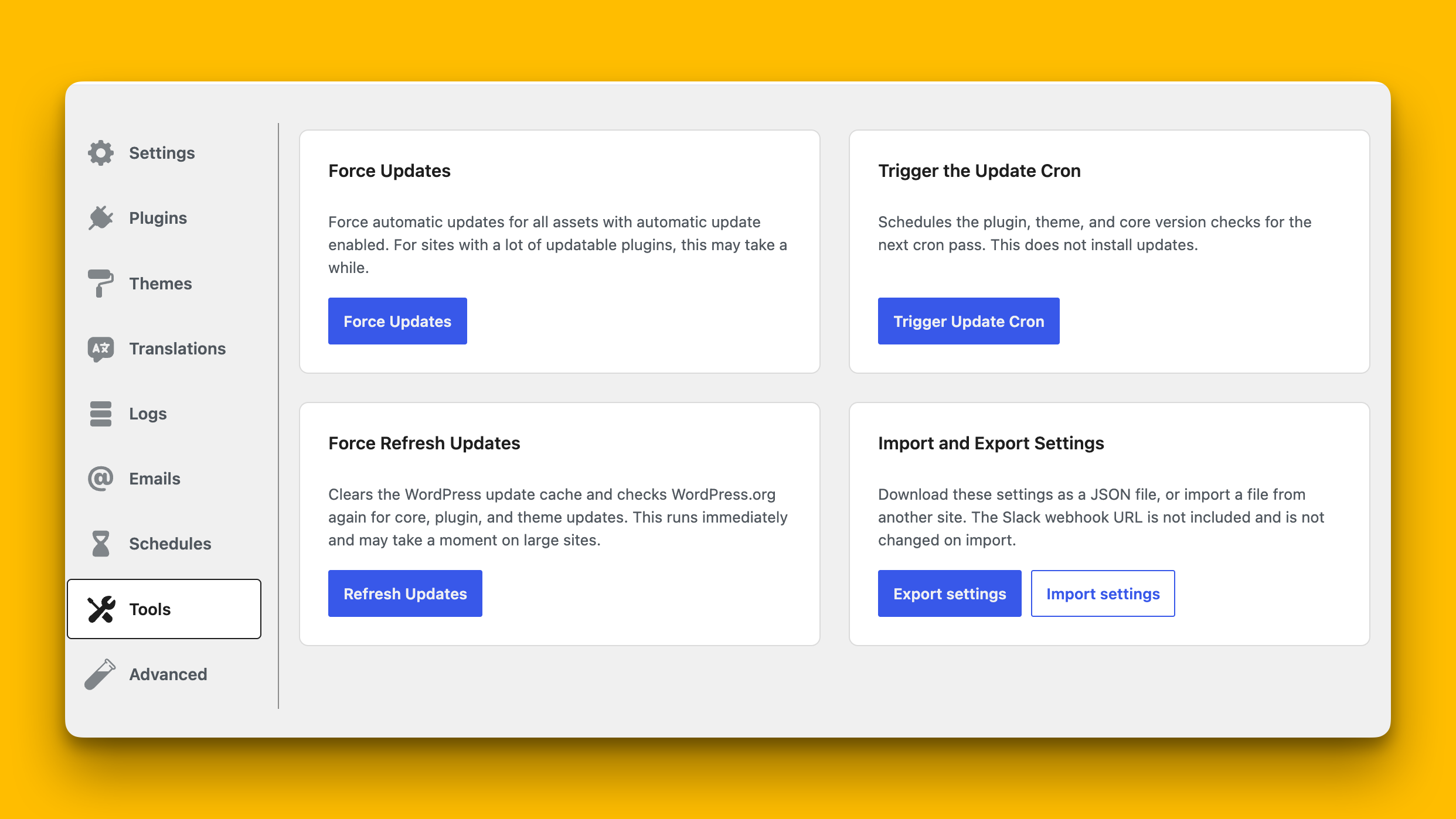
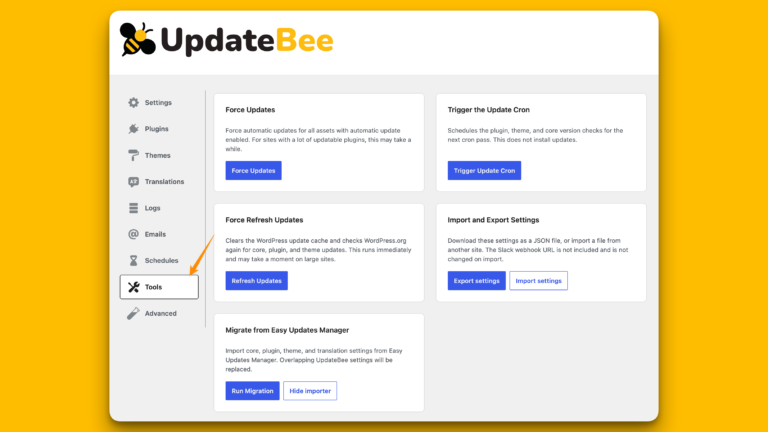
On Tools, three cards do different jobs:
Force Updates installs Core, plugin, theme, and translation updates that are already allowed to update automatically. Confirm the run, and take a backup first. When a delay is set, you can skip it for this run.
Trigger the Update Cron schedules the plugin, theme, and Core version checks for the next cron pass. The card states that this does not install updates.
Force Refresh Updates clears the WordPress update cache and checks WordPress.org again. The command palette calls this Refresh updates.