Advanced can clear selected UpdateBee lists, restore hidden importer cards, or deactivate the plugin. Deactivation leaves the plugin files in place until you delete UpdateBee from the Plugins screen.
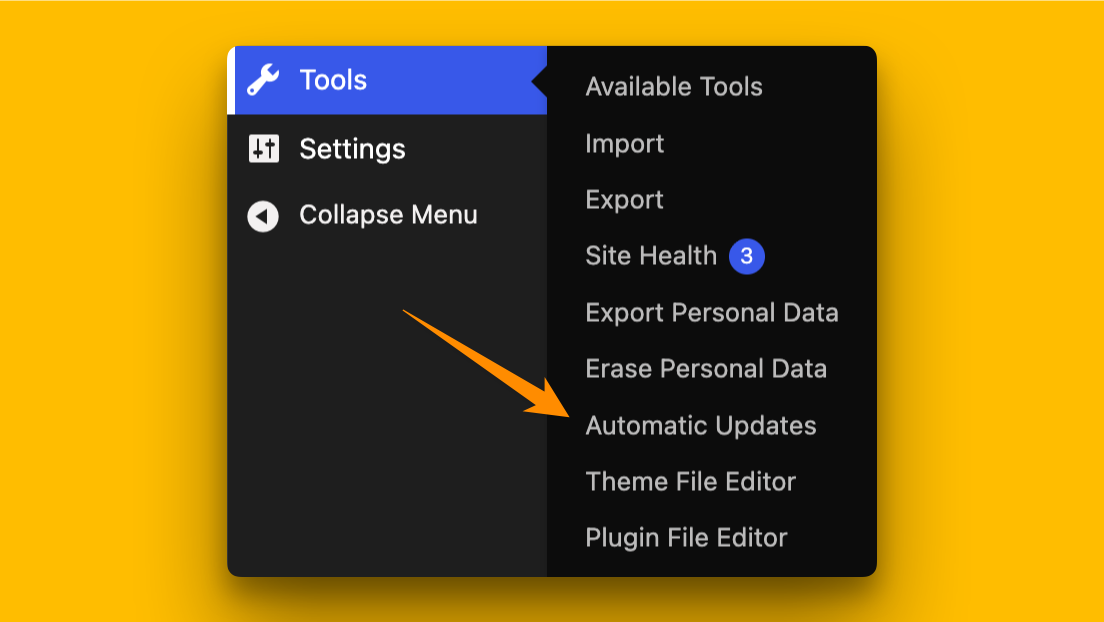
Open Advanced from Tools → Automatic Updates on a single site, or from Settings → Automatic Updates in the network admin.
Reset Options
Select Reset on the Reset Options card. The drawer checkboxes are:
Plugin Auto-Updates
Plugin Blocked Updates
Theme Auto-Updates
Theme Blocked Updates
Translation Auto-Updates
Translation Blocked Updates
Reset importers
Reset All Options
Reset importers says: “Restores hidden importer cards on the Tools screen. This does not reset UpdateBee settings.” Those cards are described in the article Import from Another Plugin.
Reset All Options clears the saved UpdateBee options. Checking it is separate from the individual lists. Cancel closes the drawer. Reset runs the boxes you checked.
Deactivate
The Deactivate card says you can deactivate UpdateBee and keep its settings, or clear settings, tables, and schedules before deactivating. The plugin stays installed until you delete it from the Plugins screen.
The card is shown to users who can deactivate plugins. On a single site that capability is activate_plugins. On Multisite it is manage_network_plugins. If the card is missing, the current user cannot deactivate UpdateBee.
Delete and Deactivate UpdateBee’s Settings
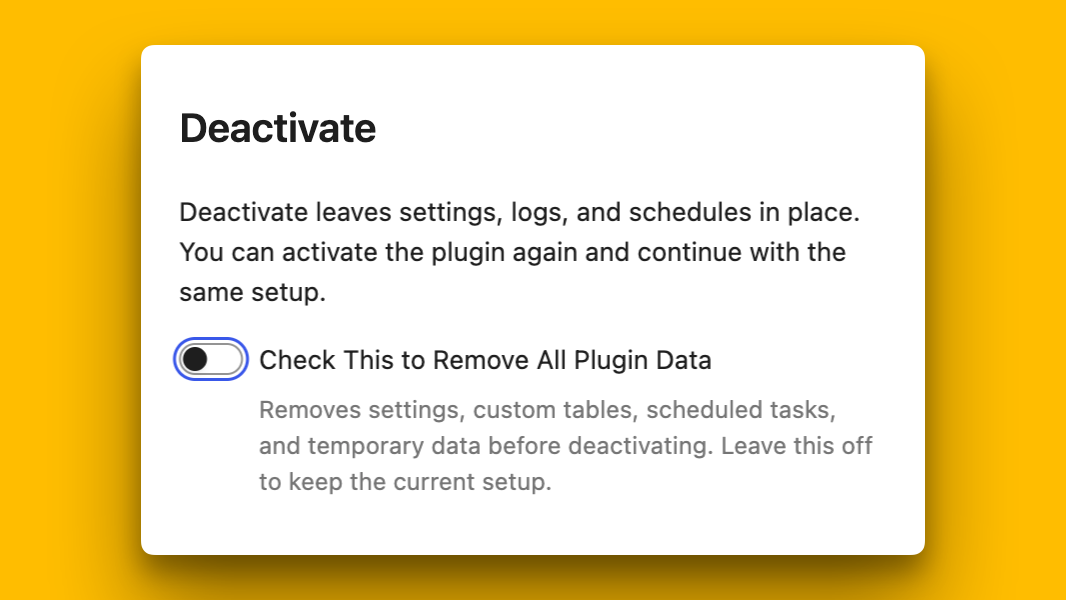
Select Deactivate. The drawer says: “Deactivate leaves settings, logs, and schedules in place. You can activate the plugin again and continue with the same setup.”
Check This to Remove All Plugin Data removes settings, custom tables, scheduled tasks, and temporary data before deactivating. The help text says to leave this off to keep the current setup.
The button reads Deactivate while the toggle is off, and Clear Data Then Deactivate while the toggle is on. Cancel closes the drawer.
Related Posts:
Skip a Version November 14, 2026 Skip a version to keep a stable version of a…