UpdateBee keeps its records on the site that runs it. On a single site that is this site’s database. On Multisite the settings are network options, and the log table is the plugin’s own table for the network. See the article UpdateBee on Multisite.
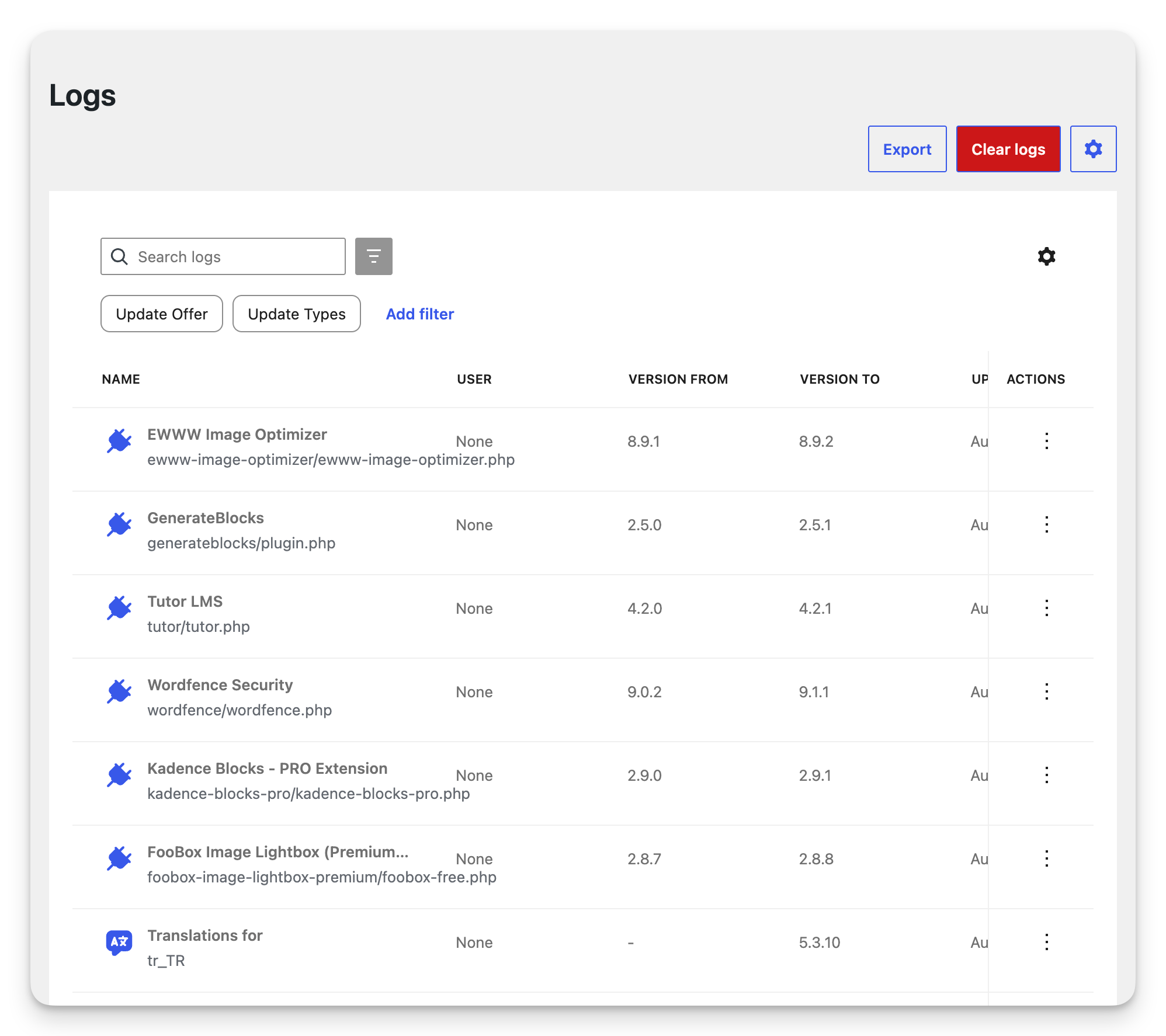
Update Logs Interface
What stays on the site
Settings, including policies, schedules, delays, branding, and email recipients, are stored with the plugin options. Logs stores each update attempt in the plugin log table: versions, offer type, status, notes, and a stack trace when one was captured. Exporting or clearing those rows is in the article Logs.
Email
Report email is sent through WordPress mail, using the recipients you save on Emails. WordPress’s own update emails can be left on or suppressed from the same tab. See the article Email Reports.
Slack
Slack receives report text only after an administrator saves a webhook URL on Advanced and opts in. The opt-in switches are:
Enable Slack notifications on Logs, for a summary when automatic or manual updates finish
Notify Slack when this report runs on Available updates
Notify Slack when a fatal error is detected on Fatal error reports
The webhook is left out of the settings export and is left unchanged when a JSON file is imported. See the article Set Up a Slack Webhook and the article Slack Reports.
Deactivate
Deactivate on Advanced can leave settings, logs, and schedules in place, or clear settings, custom tables, and schedules before the plugin is deactivated. The plugin files remain until you delete UpdateBee from the Plugins screen. See the article Reset and Deactivate.
Related Posts:
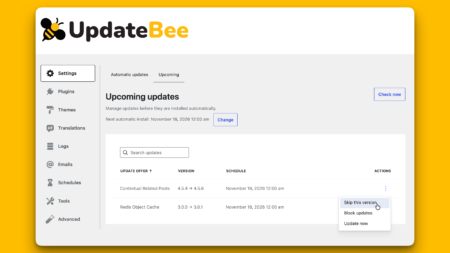
Skip a Version November 14, 2026 Skip a version to keep a stable version of a…
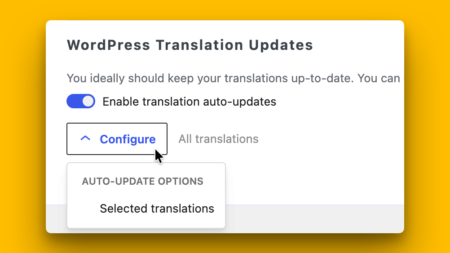
Translation Updates November 14, 2026 You can control how translations are updated in Settings, or…