The admin bar menu adds an UpdateBee shortcut to the WordPress toolbar. It is off until you enable it. It is shown only to users who can open UpdateBee. On a single site that is manage_options. On Multisite that is manage_network.
This menu appears in the toolbar WordPress is already showing. It does not force the WordPress toolbar itself to display.
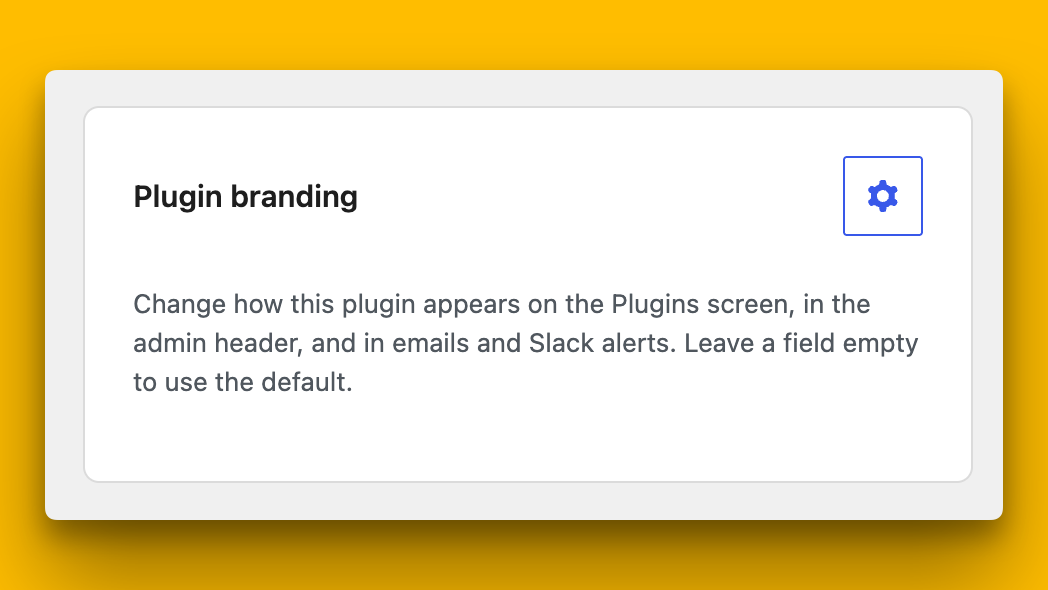
Open Advanced and find the card Admin Bar Menu.
Turn the menu on
The gear opens the drawer. The toggles are:
Enable admin bar menu
Show in wp-admin
Show on the frontend
Enable admin bar menu starts off. Show in wp-admin and Show on the frontend start on, so the first time you enable the menu it can appear in both places. Turn either location off to limit where the shortcut shows. Save stores the drawer. Cancel discards unsaved edits.
The card summary reads Enabled or Disabled, and then where it is shown: wp-admin, the frontend, or both.
What the menu contains
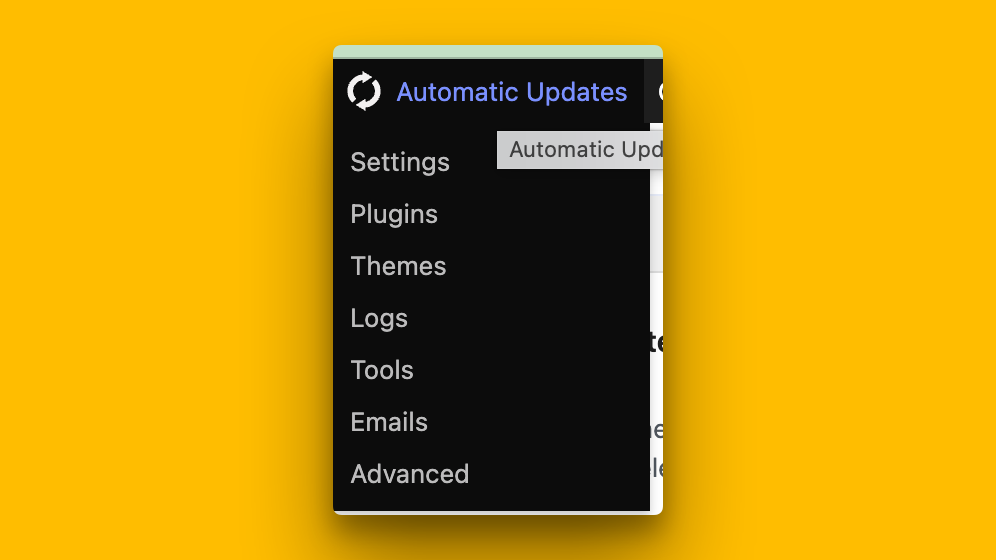
The toolbar label is the menu name Automatic Updates. Child links, in toolbar order, are Settings, Plugins, Themes, Logs, Tools, Emails, and Advanced. Translations and Schedules remain tabs on the UpdateBee screen.
Automatic Updates Menu Bar
The name, description, author, and URL on the Plugins screen, in the UpdateBee header, and in emails and Slack are a different Advanced card. Those fields are in the article Brand UpdateBee for an Agency.
Multisite toolbar shortcuts
On a Multisite network, users who can see the Network Admin toolbar menu also get Updates and Automatic Updates in that menu. Those shortcuts are added for users who can see Network Admin. They are separate from this optional menu and stay in place when Enable admin bar menu is off. They are documented in the article UpdateBee on Multisite.