Slack reports post after an incoming webhook is saved on Advanced. Each report has its own switch, and those switches stay off until you enable them. Creating the webhook and pasting it into Slack webhook URL is in the article Set Up a Slack Webhook.
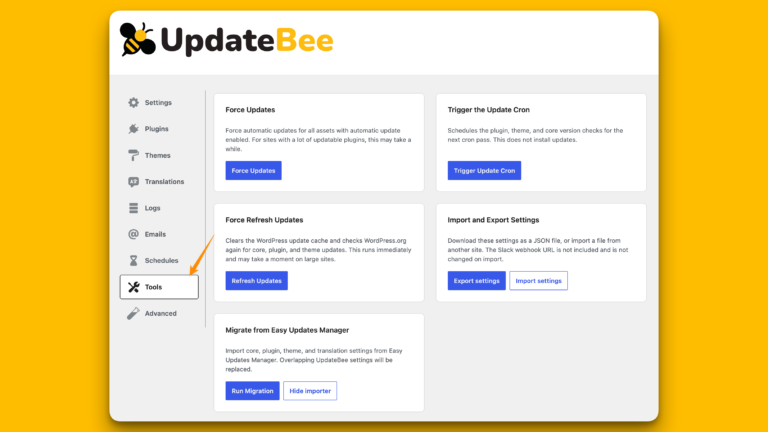
The webhook URL is left out of settings export and is left unchanged on import. Copy it onto each site that should post to Slack. See the article Import and Export Settings.
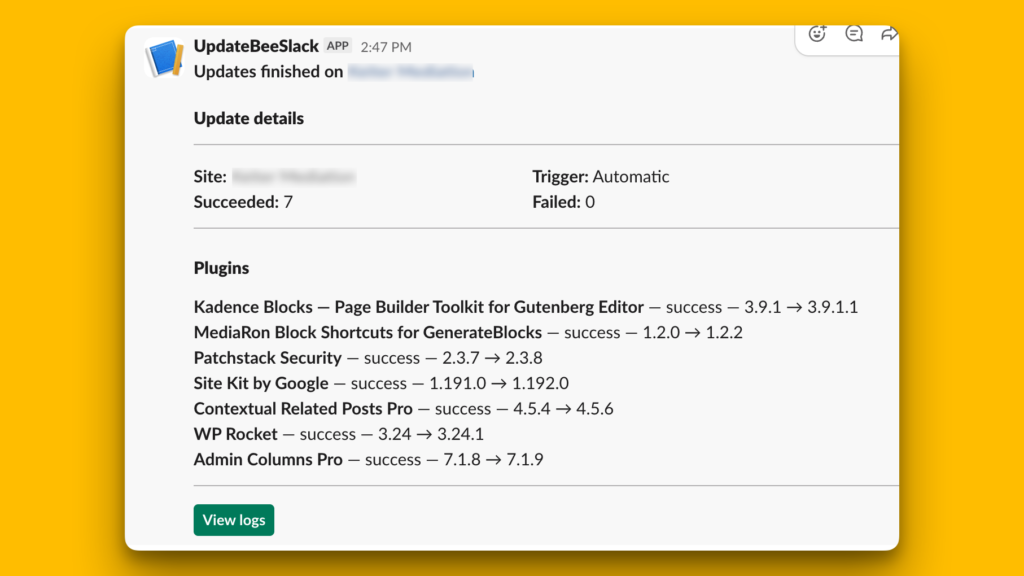
Update completion summary
On Logs, open Log settings and turn on Enable Slack notifications. The help text says: “Post a summary to Slack when automatic or manual updates finish.”
That summary is sent for automatic runs and for manual updates finished in the same request. The message can be adjusted with the updatebee_slack_message filter, documented in the article Filters. The switch stays unavailable until a webhook is saved, and the help text then says to add a Slack webhook URL in Advanced settings.
The summary is built from log rows. Clearing Logs removes the rows those reports describe. See the article Logs.
Fatal alerts
On Emails, the card Fatal error reports includes Notify Slack when a fatal error is detected. The checkbox is shown while fatal reports are enabled, and it stays disabled until a webhook is saved. The Slack message is sent only when fatal reports are enabled, the Slack checkbox is on, a webhook is saved, and a fatal was recorded for that automatic run.
The message can be adjusted with the updatebee_slack_fatal_message filter. When the check runs, and the email side of the same card, is in the article Fatal Error Reports.
Available updates
On Emails, the card Available updates includes Notify Slack when this report runs. It applies to scheduled runs and to Send now. The checkbox stays disabled until a webhook is saved. The help text then says it uses the Slack webhook saved under Advanced settings.
The message can be adjusted with the updatebee_slack_available_updates_message filter.
What stays email
Success reports and Failure reports are email delivery. Their Delivery choices are Off, Send after each automatic update run, and Send on a schedule. The Slack summary for finished updates is the Logs switch.
Related Posts:
Translation Updates November 14, 2026 You can control how translations are updated in Settings, or…
Common Use Cases November 14, 2026 UpdateBee is a versatile upgrade management plugin and features several…