Skip one offered plugin or theme version and leave automatic updates on for the next one. The item stays unblocked. A later version can install on the normal schedule.
You can skip a version from Settings → Upcoming or from the update panel on Plugins and Themes.
From Upcoming
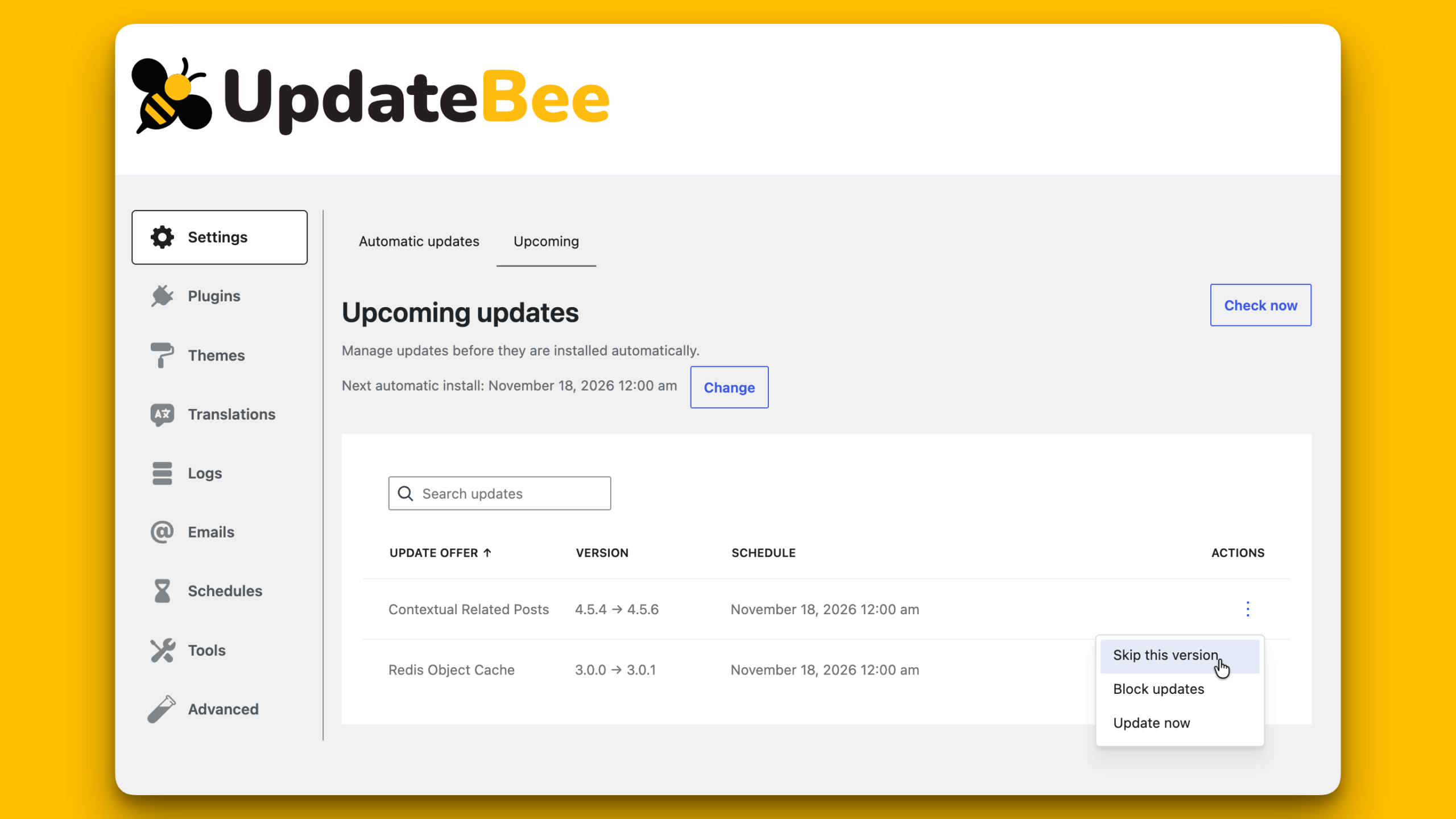
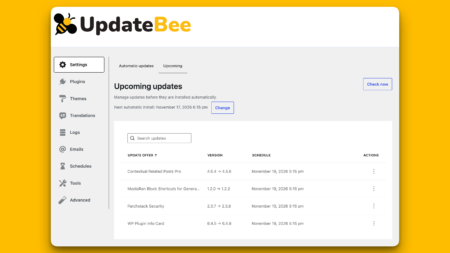
Open Settings and choose the Upcoming subtab. On a row that is still scheduled, open the row action and select Skip this version.
Skip a Version From the Settings->Upcoming Screen
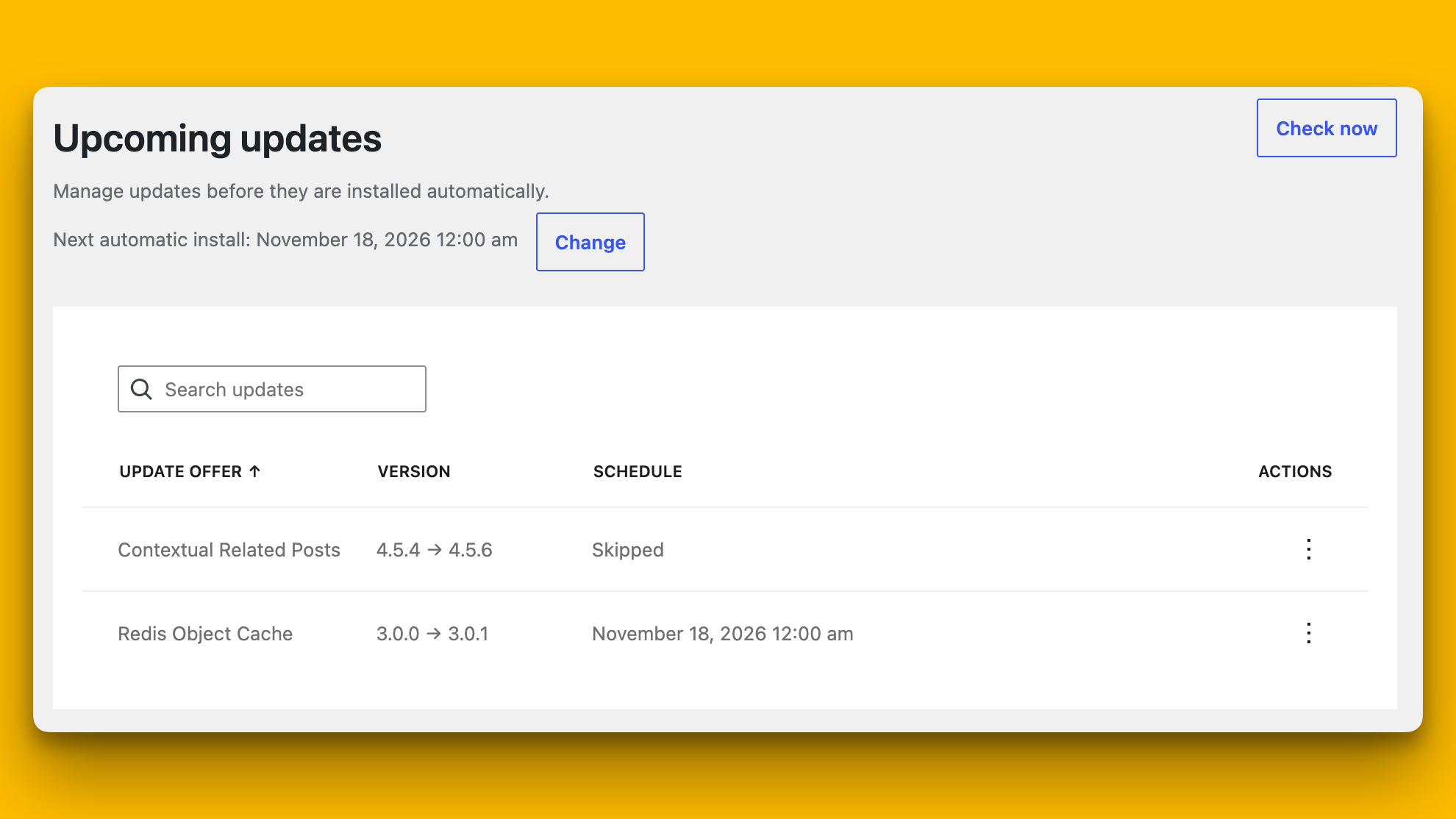
The Schedule column then shows Skipped.
Skipped Version Label on the Updates Screen
If a version is marked as Skipped, the row action changes to Schedule update. Choosing it puts the version back on the schedule.
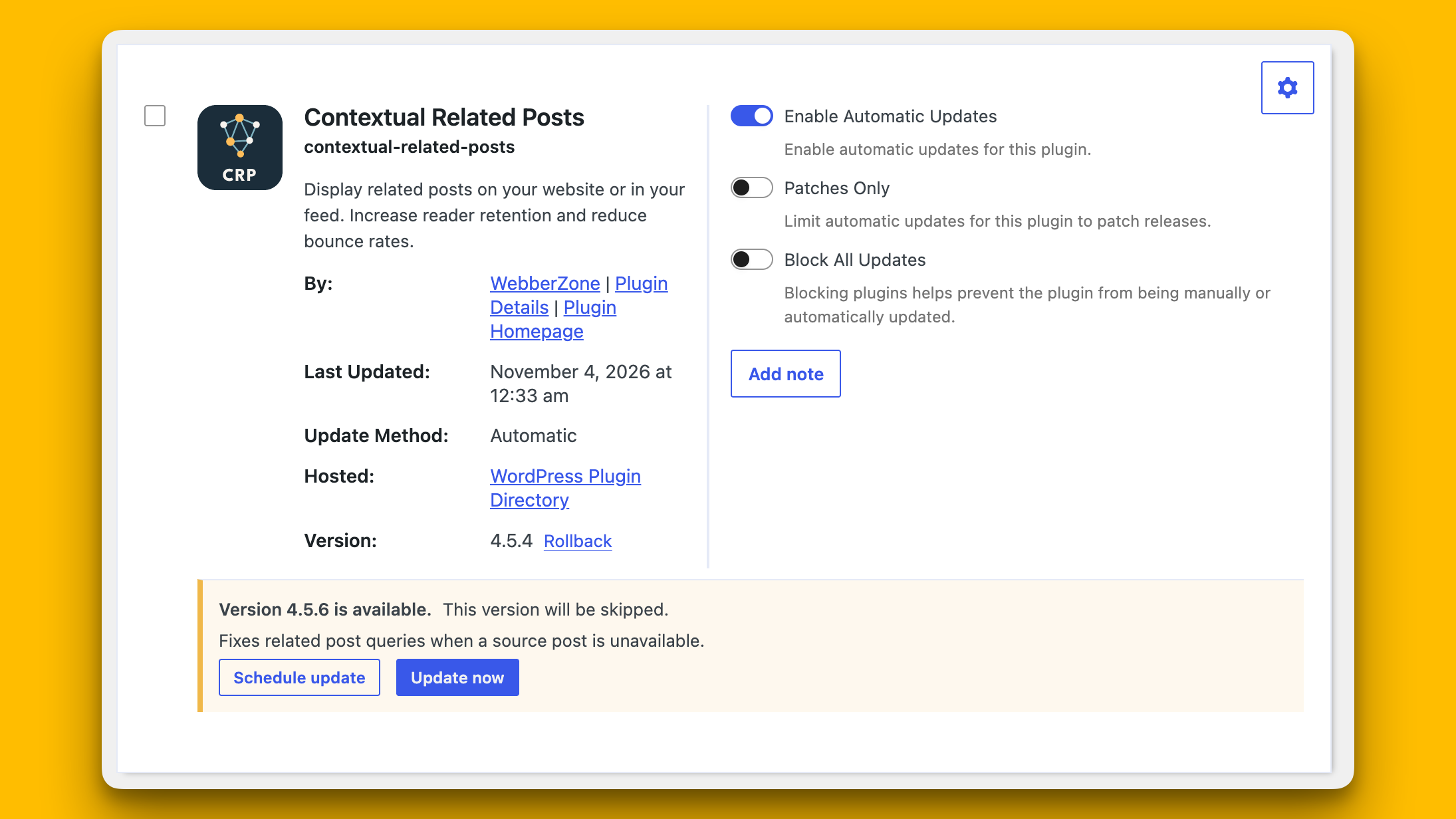
Skip or Schedule an Update From the Plugins Screen
When a plugin or theme has an update offer, its update panel shows the available version and Skip this version. If that version is already skipped, the panel says this version will be skipped, and the action changes to Schedule update.
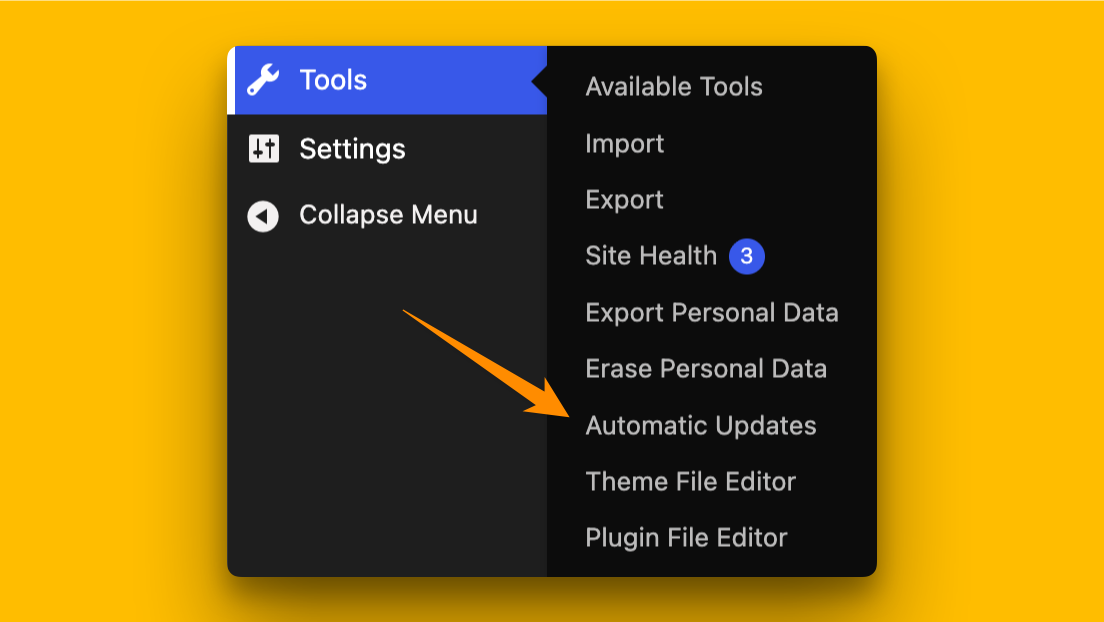
A skipped automatic attempt is recorded in Logs with the status Skipped. Please see Logs.