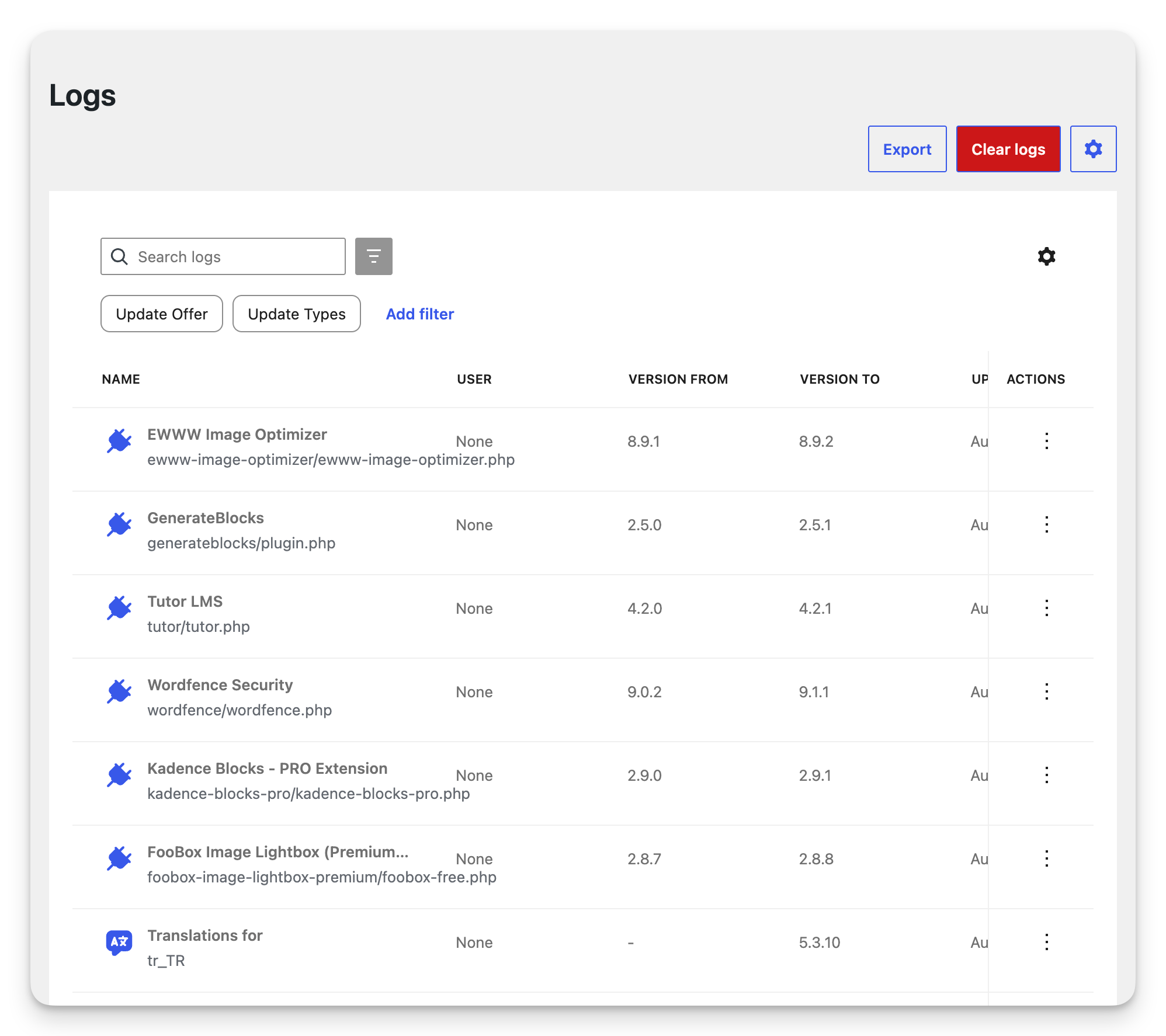
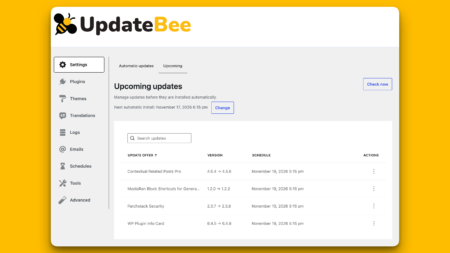
Logs records each update attempt: the name, who ran it, the previous version, the new version, whether the offer was automatic or manual, the type, the status, and the date. Email and Slack reports read this history, so clearing logs removes the source of those reports.
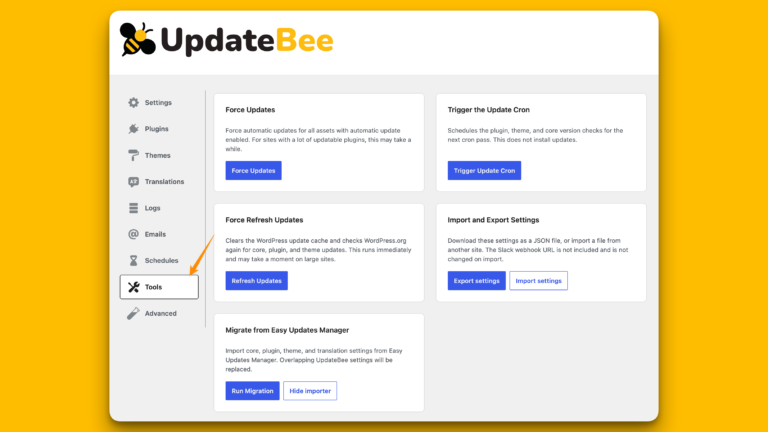
Open Logs from Tools → Automatic Updates on a single site, or from Settings → Automatic Updates in the network admin.
Update Logs Interface
Find a row
Search with Search logs. Sort the columns, and filter Status by Success, Failure, Fatal, Blocked, Skipped, or Delayed.
The table columns are Name, User, Version From, Version To, Update Offer (Automatic or Manual), Update Types (Core, Plugin, Theme, or Translation), Status, and Date.
Open a row for Log Details. The modal shows Notes and, when one was stored, Stack trace. Copy copies the text in the open tab.
Export or clear
Export opens Export Logs. Limit the CSV by Update Offer, Update Type, Update Status, Date from, and Date to, then select Export as CSV. The status list in the drawer is Success, Failure, Blocked, Skipped, and Delayed.
Clear logs asks you to confirm. The modal says this will permanently delete all log records and that the action cannot be undone.
How long rows are kept
The gear opens Log settings. Clear days is how many days to keep. The help text says logs older than this many days are deleted automatically, and that 0 keeps logs forever. A fresh install uses 0.
Enable Slack notifications posts a summary when automatic or manual updates finish. The help text, once a webhook is saved, says: “Post a summary to Slack when automatic or manual updates finish.” Until a webhook is saved, the switch is unavailable and the help text says: “Add a Slack webhook URL in Advanced settings to enable this.”