UpdateBee can post update reports to a Slack channel after you save an incoming webhook URL. Saving the URL does not turn every report on. Each report has its own switch, and those switches stay unavailable until the URL is saved.
Turn incoming webhooks on and add a webhook to the channel that should receive reports.
Copy the webhook URL. It is an https:// address Slack gives you for that channel.
Treat the URL as a secret. Anyone who has it can post to that channel.
Save it in UpdateBee
Open Advanced.
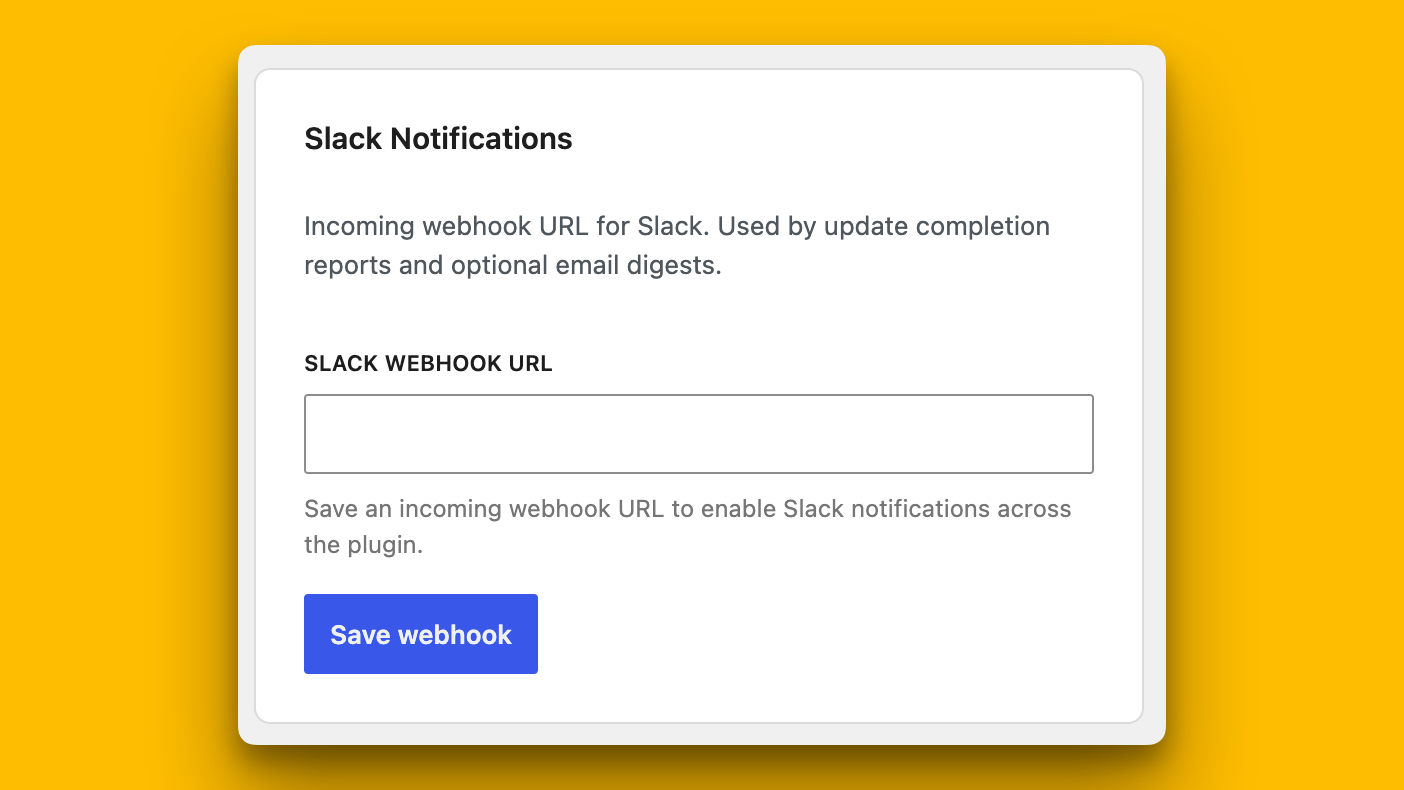
Find Slack Notifications.
Paste the address into Slack webhook URL.
Select Save webhook.
The card says the URL is used by update completion reports and optional email digests. UpdateBee accepts the value only when it is a valid URL. Clear the field and save again to remove it.
Slack Webhook on the Advanced Tab
Turn on the reports you want
A saved webhook unlocks the Slack switches. Enable only the reports you want:
Logs settings: Enable Slack notifications posts a summary when automatic or manual updates finish. See the article Logs.
Emails → Available updates: Notify Slack when this report runs includes scheduled runs and Send now.
Emails → Fatal error reports: Notify Slack when a fatal error is detected. The fatal report itself must be enabled, with at least one email recipient.
Success and failure email reports stay email reports. The Slack summary for finished updates is the Logs switch. Which message goes where is listed in the article Slack Reports.
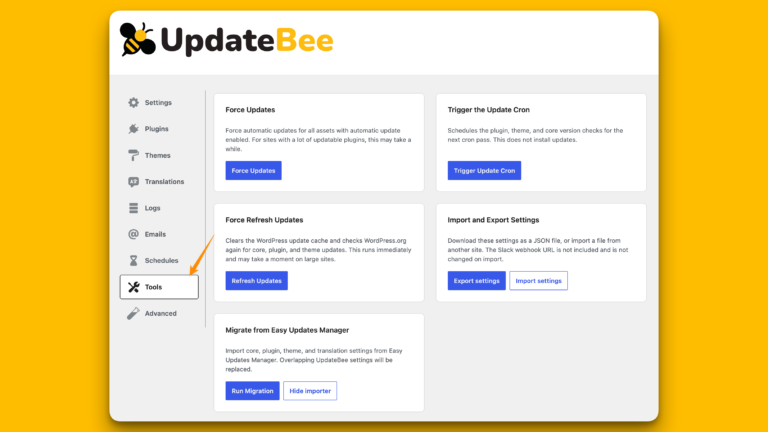
Tools → Import settings does not copy the webhook and does not replace the webhook already saved on this site. Enter the URL again on each site that should post to Slack.
When nothing is posted
The URL field is empty or not a valid URL.
The report’s own Slack switch is off.
For fatal alerts, fatal error reports are off or have no recipient.
Logs were cleared, so a completion summary has no rows to describe. Completion reports read the logs.