The Emails tab sends WordPress’s own update mail and UpdateBee reports for successes, failures, available updates, and fatal errors. The introduction says you can control WordPress built-in update emails and configure success, failure, and fatal error reports.
Open Emails from Tools → Automatic Updates on a single site, or from Settings → Automatic Updates in the network admin.
WordPress automatic update emails
The card WordPress automatic update emails is the master toggle for WordPress’s own notification emails for core, plugin, theme, and debug summary updates. The description says that when the toggle is disabled, UpdateBee suppresses those default emails.
The toggle is Enable WordPress automatic update emails. When it is on, Email Recipients is required. Separate addresses with commas, spaces, or the Enter key. Saving with the toggle on and no address shows that you must enter at least one email address. Select Save.
Success and failure reports
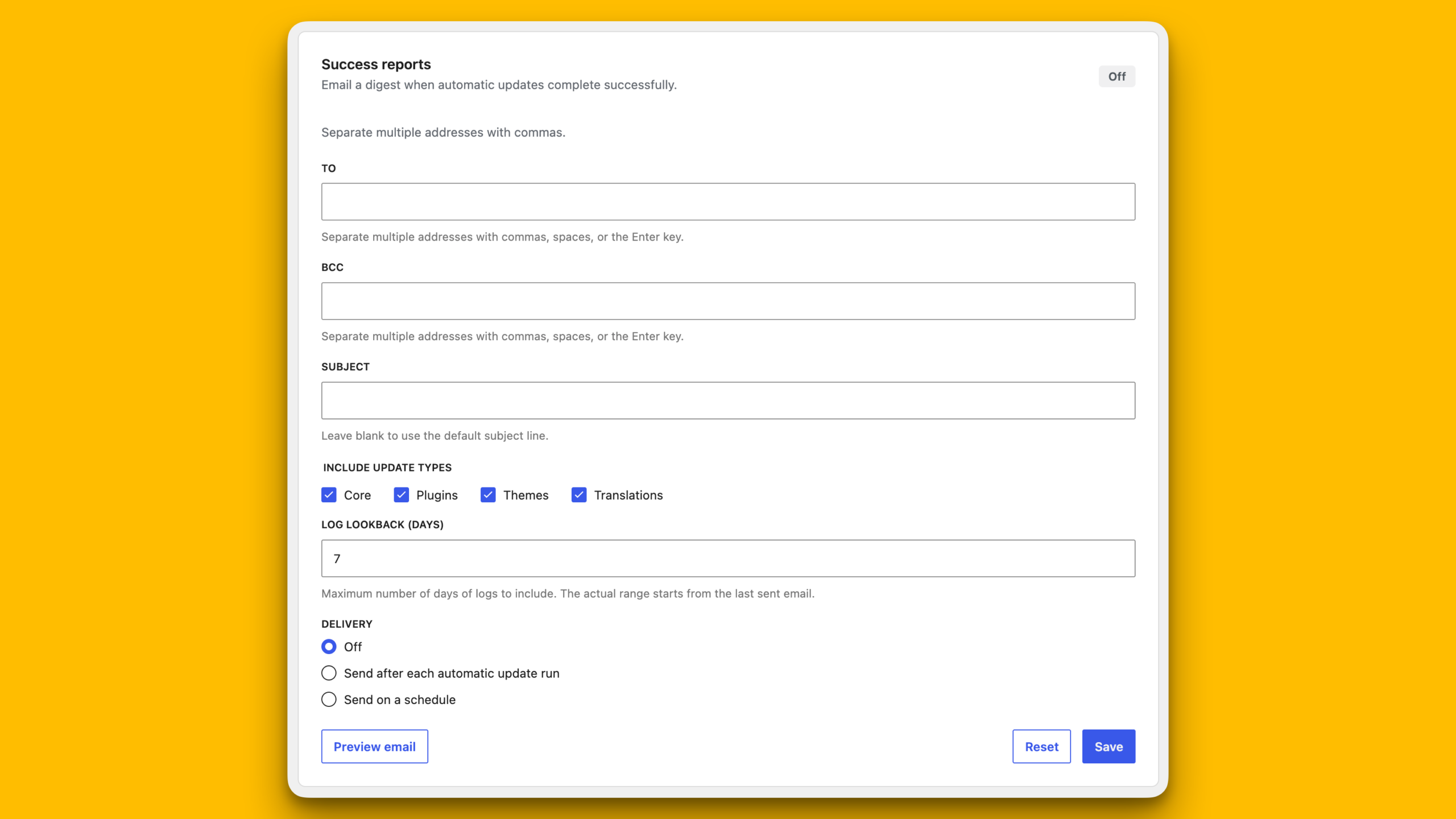
Success reports emails a digest when automatic updates complete successfully. Failure reports emails a digest when automatic updates fail.
Success Email Reports Option
Delivery for each card is:
Off
Send after each automatic update run
Send on a schedule
Send on a schedule shows Frequency, Time, and the extra day or week fields for that frequency. The frequencies are Hourly, Every two hours, Every three hours, Every six hours, Every twelve hours, Once daily, Once weekly, Every two weeks, and Once a month. Once weekly and Every two weeks add Day of week. Every two weeks also adds Week (Week one or Week two). Once a month adds Day of month, from 1 through 28.
These two cards are email delivery. Their Slack summary, when you want one, is Enable Slack notifications on Logs. See the article Slack Reports.
Available updates
Available updates emails a digest when there are available updates. Delivery is Off or Send on a schedule, with the same frequency fields as the other scheduled reports. Send now sends the current report immediately.
Notify Slack when this report runs includes scheduled runs and Send now. The checkbox stays disabled until a webhook is saved. The help text then says it uses the Slack webhook saved under Advanced settings. Setup is in the article Set Up a Slack Webhook.
Fields on the report cards
Each UpdateBee report card includes:
To and Bcc. Separate multiple addresses with commas, spaces, or the Enter key. When delivery is on, enter at least one recipient. Available updates accepts a recipient or Notify Slack when this report runs.
Subject. Leave it blank to use the default subject line.
Include update types: Core, Plugins, Themes, and Translations.
Log lookback (days) on success and failure reports. The help text says this is the maximum number of days of logs to include, and that the actual range starts from the last sent email. The field accepts 1 through 365.
Send now on available updates, which describes updates that are still pending.
Preview email, Reset, and Save.
Fatal error reports
Fatal error reports is its own card on this tab. It checks the site after automatic plugin and theme updates and can email immediately. The full behavior is in the article Fatal Error Reports.
Related Posts:
Upcoming Updates November 14, 2026 This article details what's available under Upcoming Updates, which you…
UpdateBee on Multisite November 14, 2026 UpdateBee is a Multisite-first plugin, but can work well under…