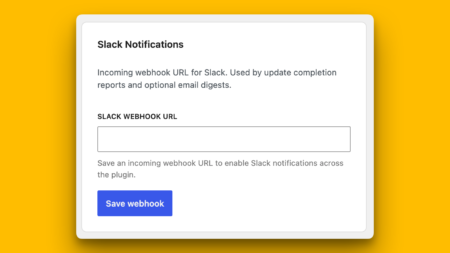
Import and Export Settings copies UpdateBee’s saved options between sites as a JSON file. The Slack webhook is omitted from the file and left unchanged on import. Paste the webhook again on each site that should post to Slack. See the article Set Up a Slack Webhook.
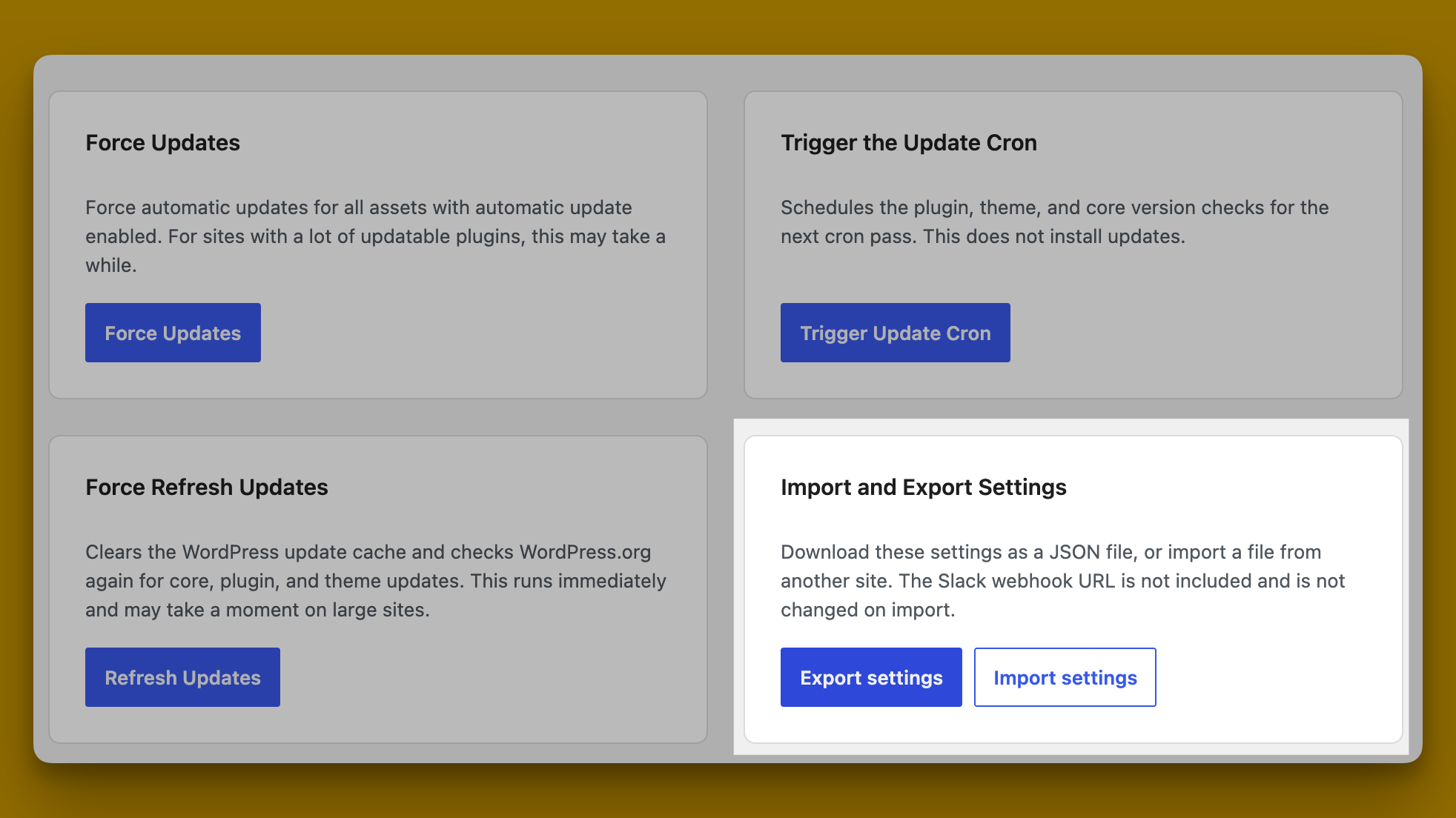
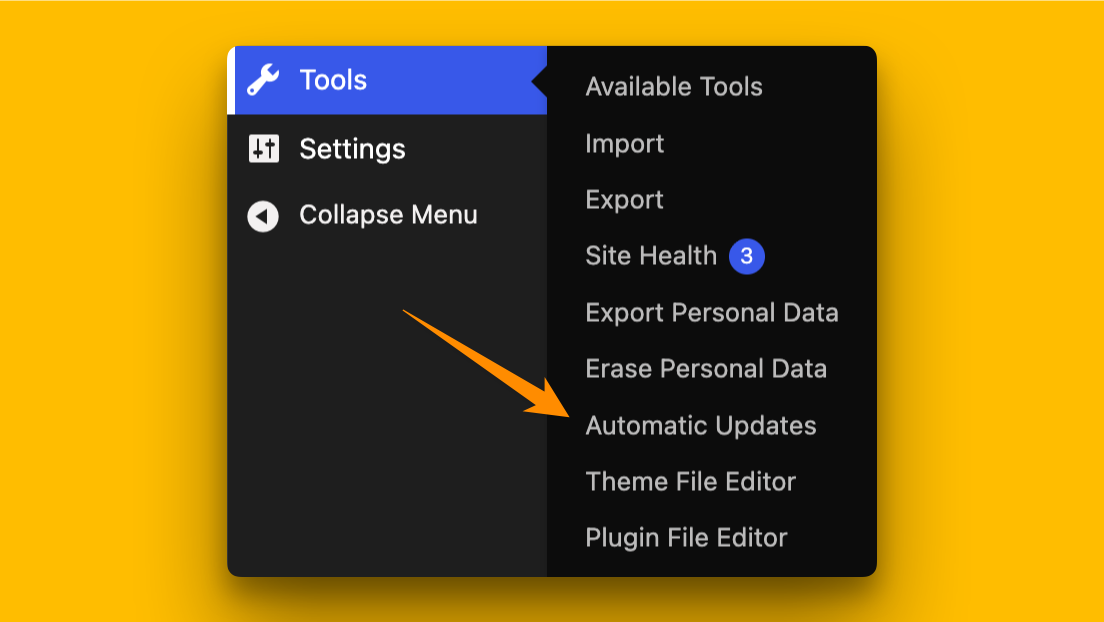
Open Tools. The card is Import and Export Settings.
The description says: “Download these settings as a JSON file, or import a file from another site. The Slack webhook URL is not included and is not changed on import.”
Import and Export UpdateBee Settings From Site to Site
Export
Select Export settings. The browser downloads the JSON file for this site, or for the whole network when UpdateBee is network-activated. See the article UpdateBee on Multisite.
Import
Select Import settings and choose a .json file. The confirmation title is Import settings. The body says this replaces UpdateBee settings with the settings in that file, and that this site’s Slack webhook URL is left unchanged.
Confirm Import settings to replace the overlapping options. Cancel leaves the current settings in place. A file UpdateBee rejects shows Settings file was rejected.
Migrate from another plugin
When Easy Updates Manager or Companion Auto Update data is still on the site, Tools can also show:
Migrate from Easy Updates Manager
Migrate from Companion Auto Update
Each card has Run Migration and Hide importer. Run Migration replaces overlapping UpdateBee settings with values from that plugin. The Companion card also says to deactivate Companion Auto Update afterward so its update filters do not override UpdateBee.
Hide importer removes that card. Reset importers on Advanced restores hidden importer cards and does not reset UpdateBee settings. The short path for those cards, including the confirmation text, is in the article Import from Another Plugin. The reset drawer is in the article Reset and Deactivate.